Windows 11 HDR Washed Out? 9 Fixes for Faded Colors
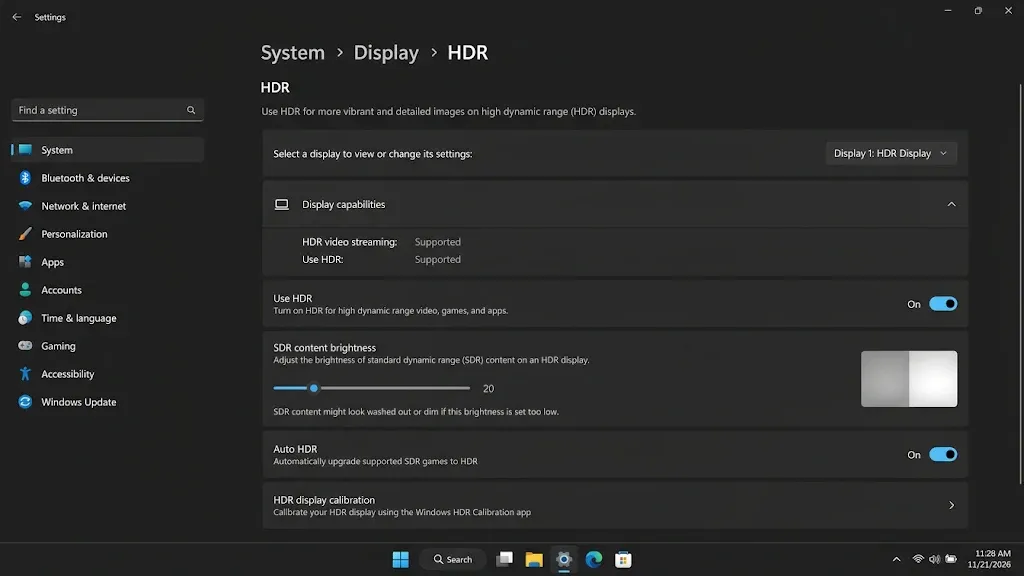
A Windows 11 HDR washed out look is one of the most common display complaints after turning HDR on. The desktop, apps, browsers and videos suddenly look gray, dim or faded, even though they looked fine before.
This guide explains why it happens and gives nine fixes in a sensible order. Start with the monitor and the cable, because those are the quickest checks. Menu names can differ between Windows builds and monitor makers, so treat the paths as a guide.
Why Windows 11 HDR washed out colors happen
HDR mode is designed for content that is made for HDR, such as some videos and games. Most of what you look at each day is ordinary SDR content, such as web pages, documents and many videos. When HDR is on, Windows converts that SDR content so it fits the HDR signal. If that conversion is set too bright or too flat, normal windows look faded.
The monitor matters too. A monitor needs real HDR support to show the difference. Some budget screens accept an HDR signal but cannot show a wide range of brightness, so the picture looks gray instead of better.
Apps add another layer. A browser or video player may show HDR content differently from the desktop, so the same screen can look right in one app and dull in another.
Before you start
Note your current settings before you change anything. Open Settings > System > Display > HDR and check whether Use HDR is on. Then change one thing at a time and test after each change. That makes it clear which step helped.
Nine fixes, in order
Work down the list and stop when the picture looks right.
Fix 1: Confirm the monitor supports HDR
Check the monitor's box or spec sheet for HDR support. Then look in the monitor's on-screen menu for an HDR or HDR mode setting, and turn it on if the monitor has one. The names vary by maker.
You should see Display capabilities show Yes next to Use HDR under Settings > System > Display > HDR for that monitor.
If this does not help: the monitor may not handle HDR well. Go to fix 9.
Fix 2: Check the cable and port
Use the cable that came with the monitor first. HDR needs enough signal bandwidth, so an older or weaker cable can limit it. Newer cables, such as HDMI 2.0 or DisplayPort 1.4, are the usual choice for HDR. Check your monitor's manual for the port it supports. Plug the cable into a port on the PC that supports HDR. Some ports on older PCs and docking stations may not.
You should see Use HDR available for that monitor under Settings > System > Display > HDR.
If this does not help: connect directly to the graphics card or motherboard port, and try a second cable.
Fix 3: Turn HDR on and check Auto HDR
Open Settings > System > Display > HDR. If you have more than one display, select the HDR-capable display first. Turn on Use HDR for that monitor. Auto HDR, on the same page in many builds, applies HDR to DirectX 11 and DirectX 12 games that do not support HDR themselves. If games look washed out and you have no HDR game to play, turn Auto HDR off. On many PCs, Windows logo key + Alt + B also toggles HDR, provided Xbox Game Bar is installed and enabled. Microsoft's HDR settings in Windows page covers these screens.
You should see Use HDR switched on for that display. Auto HDR appears on the same page in many builds, and the exact wording can change between versions.
If this does not help: turn HDR off, restart the PC, then turn HDR on again.
Fix 4: Adjust the SDR content brightness slider
On the same HDR page, find the SDR content brightness slider. It balances how bright normal windows and apps look against HDR content while HDR is on. If the desktop looks gray, raise it. If it glares, lower it.
You should see the desktop and apps change brightness as you move the slider.
If this does not help: check the brightness controls themselves. If the brightness keys or slider have stopped working, see the Windows 11 brightness not working guide.
Fix 5: Run the Windows HDR Calibration app
Install Windows HDR Calibration from the Microsoft Store. Microsoft's support page on the Windows HDR Calibration app lists the requirements: Windows 11, an HDR-capable display with HDR turned on, and the app running full screen. It also says a newer graphics chip is needed for the color saturation step to work properly. Check your graphics card against the list on that page.
Open the app from Start > All apps > Windows HDR Calibration. Drag the slider on each of the three test patterns until the pattern is no longer visible. Then drag the saturation slider if you want a more vivid picture. Microsoft notes that the saturation change can be subtle and depends on your display.
You should see each test pattern disappear as you drag its slider.
If this does not help: run the app again with more conservative settings, or skip it. It is optional.
Fix 6: Update or reinstall the graphics driver
An old or damaged graphics driver can mishandle HDR or the color signal. Install the latest driver from your graphics card maker. If the problem started after an update, a clean reinstall can help. See how to update or reinstall graphics drivers.
You should see normal colors and the HDR option working after a restart.
If this does not help: go back to fix 2. A driver cannot fix a limited cable or port.
Fix 7: Remove a stray color profile
Open Settings > System > Display > Advanced display. Select your monitor, then look for display adapter properties and the Color Management tab, if your build shows them. If you do not recognise a custom profile listed for the monitor, switch to the default profile or remove the custom one. The button names can move between builds.
You should see the default profile in use, and the colors back to their usual look after a restart.
If this does not help: the calibration itself may be the cause. Calibration steps are in the guide on how to calibrate your monitor colors in Windows 11. This article does not repeat them.
Fix 8: Check Night light and each app's HDR setting
Night light changes the warmth of the screen and can make the picture look off. Open Settings > System > Display > Night light and turn it off for a test. Community answers on Microsoft Q&A report that Night light can make colors look off on HDR screens, so this test is worth doing.
Then check the app itself. Video players, browsers and games can have their own HDR option. Turn HDR on or off there, and see which app looks wrong.
You should see the affected app look correct once its own setting changes, while other apps stay the same.
If this does not help: check the app's color or HDR options, and any color settings in the graphics control panel.
Fix 9: Turn HDR off when the monitor cannot handle it
Some monitors carry a generic HDR label, such as HDR400, that does not promise a wide range of brightness. The label does not guarantee a good HDR picture. If your monitor fits this case, the practical fix is to keep HDR off for everyday work. Turn it off in Settings > System > Display > HDR, and turn it on only for HDR video or games that look better with it.
You should see the desktop return to its normal brightness and colors with HDR off.
If this does not help: the monitor may simply not suit HDR. For a future purchase, see how to choose a PC monitor.
What not to do
- Do not edit the registry to force HDR or change color values. The steps above are the supported path.
- Avoid third-party color tweak tools. They can clash with Windows color management and are hard to undo.
- Do not change several settings at once. Change one thing, test, and note the result.
Problems covered by other guides
This article covers only washed-out colors with HDR. For blurry text after a scaling change, see the guide on fixing blurry text and screen scaling. For a screen that flickers, see the guide on fixing monitor flickering in Windows 11. For the refresh rate, see the guide on setting your monitor refresh rate.
FAQ
Why does HDR make everything look gray? Usually because normal content is converted for HDR with the SDR brightness set poorly, or because the monitor cannot show HDR well.
How do I know if my monitor supports HDR? Check the spec sheet, then look for an HDR option in the monitor's menu and in Settings > System > Display > HDR.
Should I leave HDR on all the time? Only if it looks better for how you use the PC. Many people keep it off for everyday work.
Does the Windows HDR Calibration app work on Windows 10? Microsoft's page lists Windows 11 as the requirement, so do not expect it on Windows 10.
Can a cheap cable cause washed-out colors? It can limit the signal, especially an older cable that is not rated for HDR. Try the cable that came with the monitor.
Will these fixes change my games? Games can have their own HDR and brightness settings, so check those separately.
Next steps
Start with the monitor's HDR support, the cable and the HDR switch. Then adjust the SDR content brightness and try the Windows HDR Calibration app. If nothing helps, HDR may not suit that monitor, and leaving it off is a reasonable choice. You can find more fixes in our PC repair guides.