D3DX11_43.dll Missing in Windows 10 or 11? Safe Fixes
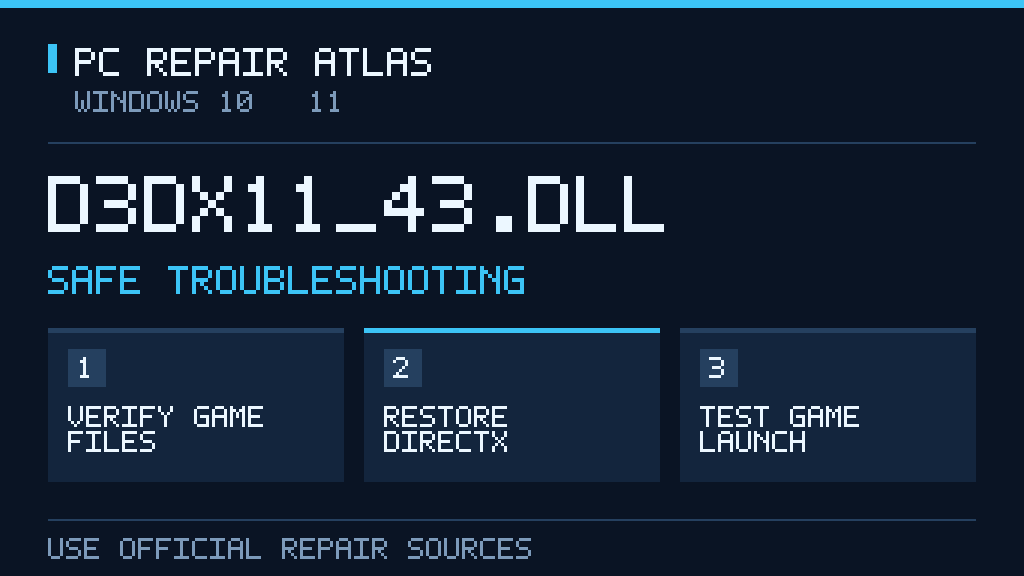
A game that reports “D3DX11_43.dll was not found” on Windows 10 or 11 may be missing an older DirectX utility library, even when DxDiag reports DirectX 12. These are different components. Do not downgrade DirectX or copy a DLL from an unfamiliar website.
Identify the missing dependency
D3DX11_43.dll is a legacy D3DX utility used by some Direct3D 11 applications to load resources, textures and perform other graphics operations. It is not the same file as d3d11.dll, the core Direct3D 11 component included with Windows. Microsoft has deprecated D3DX, but older games may still require it. A modern graphics driver or an updated operating system alone does not guarantee that the optional older library is installed.
Step 1: Verify the game installation
Write down the exact filename and whether the dialog appears before the game window opens. If the error follows a game update, use the launcher’s verify or repair feature. For a standalone installer, use its repair option if available. Preserve saved games and remove only third-party modifications through their documented uninstall process. A file in a mod folder may be unrelated to the original game installation.
Step 2: Restore the legacy DirectX dependency
Check the game publisher’s support instructions for its DirectX prerequisite. Some games ship a redistributable installer in their installation directory. Use the publisher’s official copy or Microsoft’s DirectX End-User Runtimes (June 2010) package. If you use that package, extract it to a new temporary folder and run DXSETUP.exe from the extracted files. Follow the installer prompts and restart when requested. This adds optional older libraries; it does not replace the current DirectX version. Never download a standalone DLL or register this library using regsvr32.
Step 3: If the error changes to Bad Image
A Bad Image message or 0xc000007b can indicate a damaged dependency or a mismatch between a 32-bit application and a 64-bit library. Restore original game files and run its supported prerequisite installer. The architecture of the game, not only the operating system, matters. Do not swap files between System32 and SysWOW64. See our Bad Image troubleshooting guide for the separate diagnostic path.
Step 4: Investigate crashes after startup
If the game now opens but crashes when loading a level or texture, press Windows + R, enter perfmon /rel and open the matching failure in Reliability Monitor. Record the faulting module, exception code and time. A crash involving D3DX11_43.dll does not prove that the library is corrupted. Test without optional texture packs, install the publisher’s update and use a supported graphics driver from your PC or GPU manufacturer. Change one item at a time.
When Windows repair is appropriate
System File Checker does not install optional legacy DirectX packages. If unrelated Windows components are also failing, follow Microsoft’s system file repair instructions. Run DISM before SFC and retain any error output. Otherwise, prioritize the affected game's installation.
Verify the repair
Launch the game twice, load a previously failing level and confirm the missing-file dialog no longer appears. If the installer succeeds but the exact error remains, send the publisher the game version, Windows build (winver), and the complete error text. A registry cleaner is not a substitute for the required runtime.
Related reading
See Microsoft’s D3DX11 reference and the Direct3D 10 repair guide on PC Repair Atlas for additional context.
For older DirectX games, distinguish optional D3DX helpers from the shader compiler and core Direct3D graphics API. Related guides: D3DCOMPILER-43.dll troubleshooting; D3DX10-43.dll troubleshooting; D3D11.dll troubleshooting; DLL Library. Official reference: Microsoft DirectX deployment guidance.