Laptop Shuts Off When Unplugged? Causes and Fixes
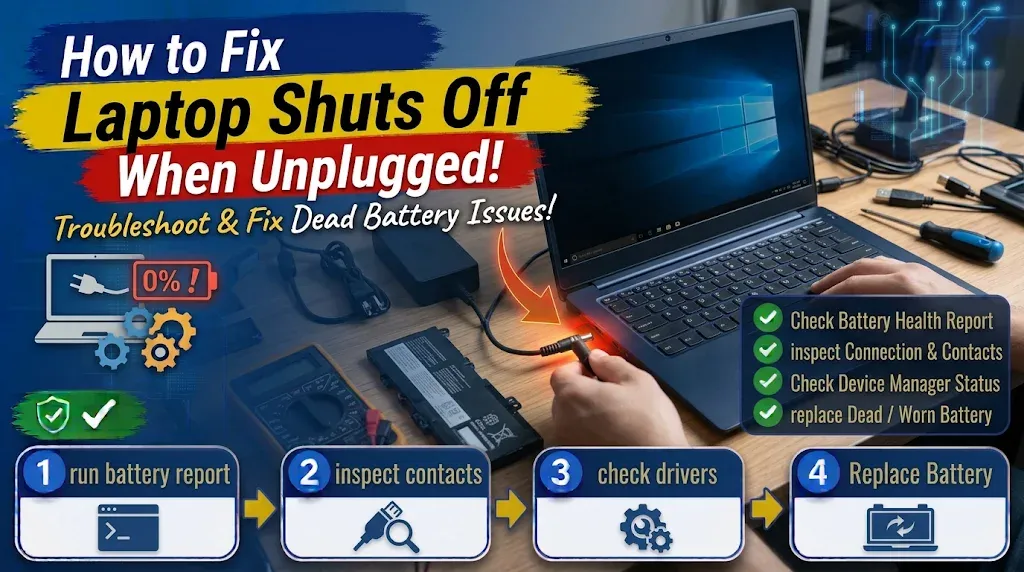
A laptop that shuts off when unplugged usually has a worn-out battery, a battery that Windows cannot read properly, a connection problem or a power setting that cuts the power too early. This guide helps you tell which, using a battery report and a few checks with clear results, so you know whether you need a new battery before you spend money.
Safety note
If the laptop case bulges, the touchpad is lifted, the lid will not close flat or the battery looks swollen, stop using the laptop and do not charge it. A swollen battery is a fire risk. Take it to a repair shop, or see how to replace a laptop battery safely.
How does it shut off?
- It turns off the moment you unplug it, even at 100 percent: the battery is dead, not detected or not connected.
- It runs for a few minutes, then drops from a high percentage to zero: the battery is worn and cannot report its charge correctly.
- It shuts off only under heavy load or when hot: the battery cannot supply the power demand, or the laptop is overheating.
- It shuts off even while plugged in: this is a different problem. See how to fix a PC that restarts by itself.
Step-by-step: find the cause
Step 1: Check what Windows says about the battery
With the charger connected, look at the battery icon in the taskbar. Note what it says: a percentage, No battery detected or Plugged in, not charging. For charging problems, see how to fix a laptop that is plugged in but not charging.
You should see: a normal percentage. No battery detected means the battery is dead, disconnected or its connector is loose, so go to Step 3.
Step 2: Run a battery report
Open Terminal or Command Prompt and run:
powercfg /batteryreportThe command prints the location of the report file. Open it in a browser and compare Design capacity with Full charge capacity in the Installed batteries table.
You should see: a full charge capacity close to the design capacity on a healthy battery. A full charge capacity far below it (for example well under half) means the battery is worn. A report with no battery, or zero capacity, means it is dead or not detected. The Recent usage table shows when the battery dropped, which helps you spot a sudden fall from a high percentage. For more on reading it, see how to check laptop battery health.
Step 3: Reseat the battery if it is removable
Shut the laptop down, unplug the charger, take the battery out, hold the power button for about 30 seconds and put the battery back firmly. If the battery is internal, do not open the case unless you know how; a repair shop can check the connector.
You should see: a battery that is now detected and charges. If not, the battery or its connector is faulty.
Step 4: Run your maker’s battery test
Many laptops have a built-in battery test in the BIOS or in the maker’s support app. Use it, since it checks the battery and the charging circuit and gives a pass or fail. A replace battery result points to the battery as the cause.
Step 5: Check the power settings
Open Control Panel > Power Options > Change plan settings > Change advanced power settings and expand Battery. Check Critical battery action, Low battery level and Critical battery level. A very high critical level makes the laptop shut off while the battery still has charge. Also set Settings > System > Power & battery > Power mode to Balanced as a test.
You should see: sensible levels (for example low at 10 percent and critical at 5 percent). If they were odd, set them back and test again.
Step 6: Reinstall the battery drivers
Open Device Manager and expand Batteries. Right-click Microsoft ACPI-Compliant Control Method Battery and choose Uninstall device. Do the same for Microsoft AC Adapter if it is listed. Then shut down, unplug the charger, plug it in again and start the laptop. Windows reinstalls the drivers at start.
You should see: both entries back in Device Manager after the restart, and a battery percentage that makes sense.
Step 7: Update the BIOS and the power drivers
Install the BIOS, chipset and power management updates from the laptop maker (see how to update your BIOS safely). Keep the charger plugged in during a BIOS update, and never start one on a battery that shuts the laptop off.
Step 8: Check the heat and the load
If the laptop shuts off only when it works hard, check the temperatures (see how to check CPU and GPU temperature) and clean the vents (see how to clean a laptop safely). A weak battery cannot meet a demand spike, so lowering the load helps (see how to fix fast battery drain).
Step 9: Look for evidence in the event log
Open Event Viewer > Windows Logs > System and look for a Critical event from Kernel-Power with ID 41 at the time of the shutdown. It shows that the PC restarted without a clean shutdown, which can happen after a power loss, but it does not name the cause. See how to read the Event Viewer entries.
Step 10: Replace the battery or the charging circuit
If the battery report shows a worn battery and the laptop runs normally on the charger, buy a replacement that matches your model, and fit it carefully (see how to replace a laptop battery safely). If a new battery does not help, the charging circuit on the motherboard may need repair, which is a job for a technician.
More help
For more laptop repair guides, search by symptom on the PC Repair Atlas homepage.
FAQ
Can I use the laptop with the battery removed? Many laptops run on the charger alone, but a power cut or a loose plug then turns it off at once, and you can lose unsaved work.
Why does the percentage drop from 40 to 0? An old battery cannot report its charge correctly, so the laptop cuts off when the real charge runs out.
Is it the charger? If the laptop works on the charger, the charger is fine. The battery is the likely cause.
How long does a laptop battery last? It depends on use and heat, but most batteries lose a lot of capacity after a few years of regular charging.