Wiaservc.dll Error in Windows 10 and 11: Scanner Fixes
What does Wiaservc.dll do?
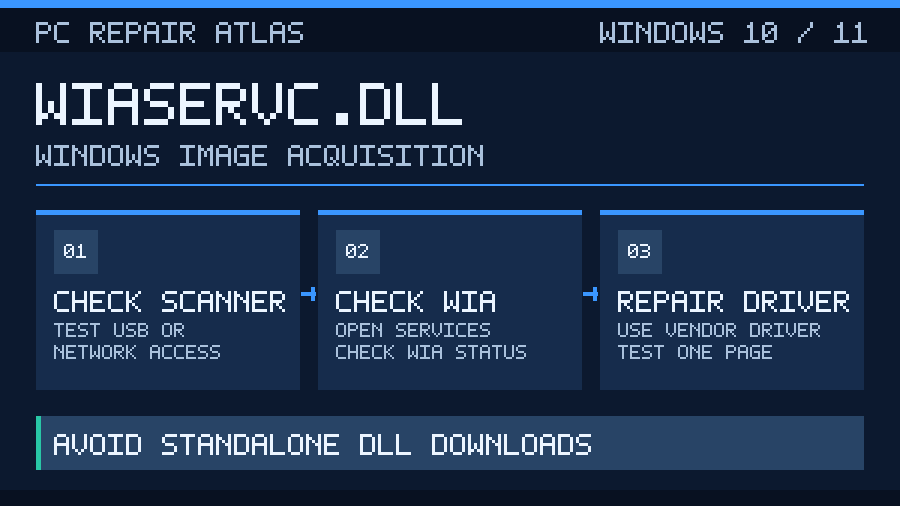
Wiaservc.dll is part of the Windows Image Acquisition (WIA) service, which connects compatible scanning applications to imaging device drivers. Microsoft describes the service as running inside a Windows service host process. An error that names this DLL is evidence of a problem in the scanning chain, not proof that the DLL itself is defective. A scanner driver, USB connection, network discovery failure, or invalid scan request can produce a similar symptom. This guide applies to Windows 10 and 11.
Identify the symptom before repairing Windows
Record the full error message and the name of the application. If a scanner appears but fails when you select a particular resolution, paper size or document feeder, retry with a single page on the flatbed at a standard resolution. If no scanner appears in any app, concentrate on connection and discovery first. If Event Viewer reports an application error, open Windows Logs > Application and record the faulting process, module and exception code. Do not assume that every service-host crash is caused by WIA.
1. Test the scanner independently
Turn the scanner off and on, then reconnect it. For USB, use a direct computer port rather than a dock or unpowered hub. For network devices, confirm that the computer and scanner can communicate on the intended network. A printer may print successfully while its scanner interface remains unavailable. In Windows 11, open Settings > Bluetooth & devices > Printers & scanners; in Windows 10 use Settings > Devices > Printers & scanners. Check whether the imaging device is available. Try a different supported scanning application to distinguish a device problem from an application problem. Follow Microsoft's scanner setup and testing instructions if Windows has not recognized the scanner.
2. Check Windows Image Acquisition
Press Windows+R, enter services.msc and locate Windows Image Acquisition (WIA). If the service is stopped, try starting it. If it is running, close scanning applications before restarting it, provided no scan is underway. Note any service startup error rather than repeatedly restarting it. On managed PCs, ask the administrator before altering service settings. Do not disable service dependencies or change unrelated services. Microsoft documents a WIA initialization problem that can prevent WSD scanners from appearing in applications; it is especially useful when network discovery works but the scan app cannot see the device.
3. Repair the scanner driver and app
Download the driver or scanning software for your exact model and Windows architecture from the device manufacturer's support page. Check whether the vendor requires a particular installation sequence. If the problem began after a driver update, consider the previous supported driver using Device Manager's Roll Back Driver option when available. Avoid deleting driver-store packages indiscriminately. If only one application fails, check its updates and repair or reinstall that application after saving any custom scanning profiles.
4. Check Windows system integrity only when indicated
If WIA fails across several applications, especially after a Windows servicing error, open Terminal or Command Prompt as administrator and run DISM /Online /Cleanup-Image /RestoreHealth. After it finishes, run sfc /scannow. Restart Windows and test again. These commands repair supported Windows components; they do not replace an incompatible manufacturer's scanner driver. If DISM reports a source error or SFC cannot repair files, preserve the output for further diagnosis. Do not obtain Wiaservc.dll from a DLL download site or manually register it.
Verify the repair
Scan a single page, then try a second resolution or the document feeder if supported. Save and open the output file. Repeat in the original application and check Event Viewer for a new crash at the test time. If a particular model still fails while another scanner works, provide the model, driver version, connection type and WIA error to the manufacturer's support team. If USB detection itself fails, see the WinUSB troubleshooting guide for applicable USB interface problems. For camera and sensor capture errors instead of document scanning, compare the MFSensorGroup.dll guide.
Related guides and Microsoft documentation
Windows imaging codec errors can be relevant when scanning succeeds but the resulting image will not open. See the SFC and DISM repair guide and the DLL Library. Microsoft references: WIA architecture and scanner discovery troubleshooting.