Fix WindowsCodecs.dll Errors in Windows 10 and 11
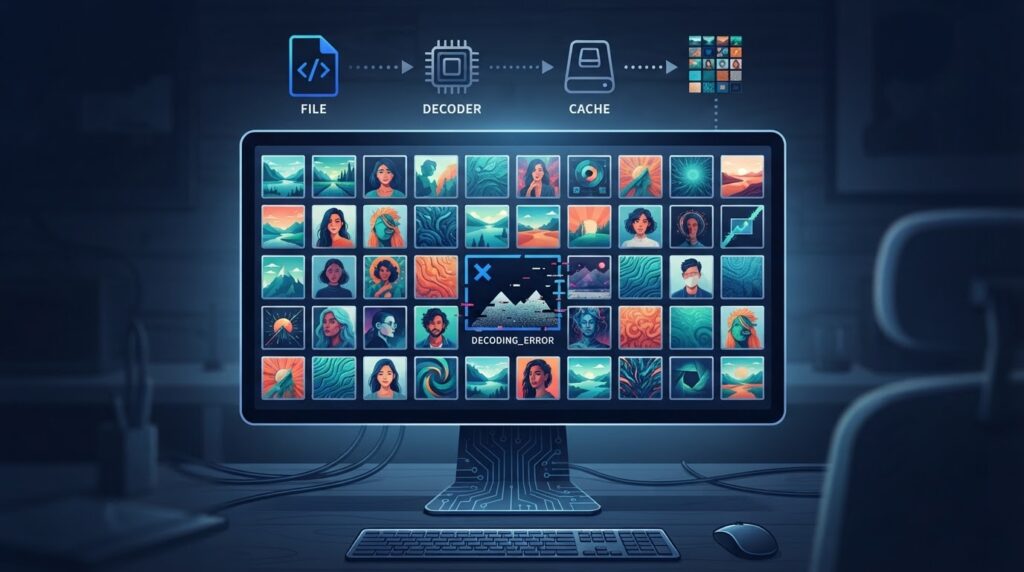
A windowscodecs.dll failure may show up while opening a picture, generating a thumbnail or exporting an image. Start by distinguishing an unreadable image from a crash of the image-processing component. Replacing the DLL without this distinction can make a working installation worse.
What is windowscodecs.dll?
WindowsCodecs.dll implements Windows Imaging Component functionality used by programs to decode, encode and process images. WIC supports common formats and extensible codecs. A file extension does not guarantee that the underlying data is intact or supported by the installed decoder.
1. Compare formats and applications
Make a copy of the problem file before testing. Open a known-good JPEG and PNG using the same program. Then try the failing image in a different trusted viewer that supports its format. If just one image fails everywhere, recover the original from its source or backup. If only one format fails, investigate its codec rather than repairing every Windows component.
2. Check optional image format support
Some formats, such as HEIF, may need an appropriate extension or codec. Use the Microsoft Store or the software manufacturer's supported installation instructions. If an extension is already installed, check for its updates. Avoid random codec packs that replace system components or register unrelated decoders. For ordinary JPEG and PNG files, start with the built-in image support.
3. Isolate thumbnail and File Explorer failures
If File Explorer crashes only when opening a folder containing images, switch to a details view if possible and temporarily disable the preview pane. Move copies of suspect images into a test folder and add them one at a time. A single damaged image or third-party thumbnail handler may trigger a crash even if WindowsCodecs.dll appears in the report. Do not discard your original pictures during this process.
4. Repair the affected image application
Install the program's supported updates. For a Store app, look for Repair under Settings > Apps and its advanced options, if available. Use Reset only after checking what app data it will remove. For a desktop editor, use its vendor-provided repair installer. If multiple viewers and Explorer fail on ordinary image files, proceed to Windows system integrity checks.
Repair Windows system files safely
Back up important files and open Terminal or Command Prompt as administrator. Run the first command, wait for it to complete successfully, and then run the second. Restart after repairs and test again. If either command reports an unresolved error, record it rather than downloading replacement DLLs.
DISM.exe /Online /Cleanup-image /Restorehealth
sfc /scannow
See Microsoft's system file repair instructions for details. If the issue remains limited to one application, a clean system scan is a reason to return to application-specific troubleshooting.
How to verify the fix
Reopen a known-good JPEG, a PNG and a copy of the original problem image. Generate thumbnails and repeat the export or preview operation that failed. If all standard images now work but an unusual format does not, check the format support separately; this does not necessarily indicate remaining Windows corruption. If the scanner cannot acquire the image in the first place, follow the Windows Image Acquisition service troubleshooting guide instead.
Frequently asked questions
Should I install a downloaded WindowsCodecs.dll? No. Restore Windows components with supported repair tools and obtain optional codecs from their legitimate sources. Will resetting Photos delete my pictures? Do not assume that reset preserves all application data; back up important images and settings first. Does a thumbnail failure mean the image is permanently lost? No. Another supported viewer or a backup can help establish whether the file itself is damaged.
Related repair resources
Microsoft Windows Imaging Component overview · Update or reinstall graphics drivers · Troubleshoot application error 0xc000007b · PC Repair Atlas