How to Choose a Graphics Card for Your PC
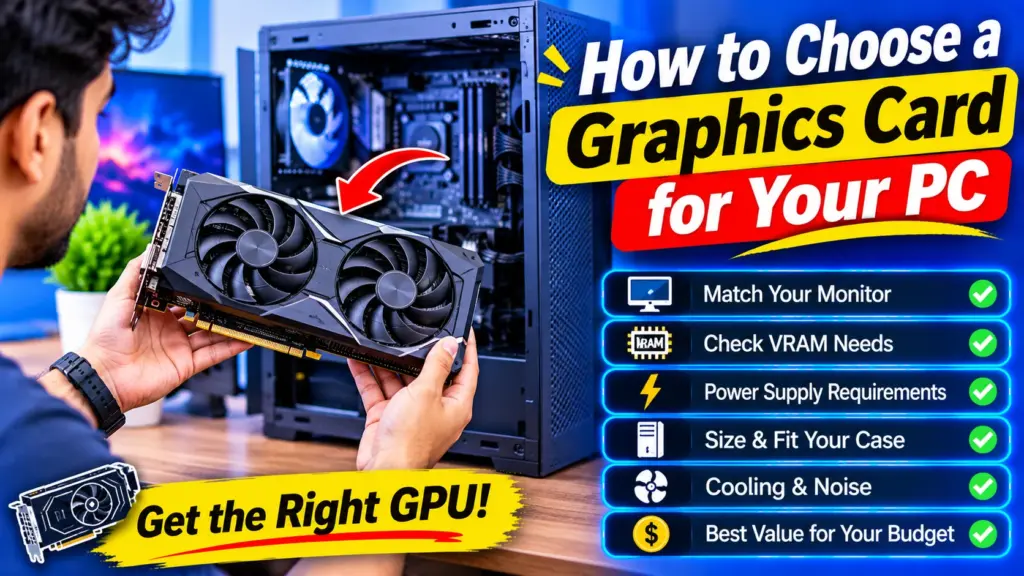
How to choose a graphics card starts with your screen, the games you play and what your PC can power and fit. The graphics card (GPU) is the part that most affects gaming performance, and it is also one of the most expensive. This guide gives you a checklist with a way to test each point, without naming models that will soon be out of date. It is for desktops: laptop graphics cannot be swapped.
Step-by-step: choose a graphics card
Step 1: Decide what you will use it for
Write down your main uses: games (which ones, and how demanding), video editing, 3D work, or local AI. These have different needs. Video and AI work care most about VRAM and software support, and games care most about speed at your screen's resolution.
Step 2: Match it to your monitor
The screen's resolution and refresh rate decide how much power you need.
- 1080p: the least demanding
- 1440p: needs a noticeably stronger card
- 4K: the most demanding
A high refresh rate (such as 144 Hz) also needs a stronger card to reach it. To see what your monitor does now, open Settings > System > Display > Advanced display.
Step 3: Set your budget
Decide how much you will spend, including a power supply upgrade if you need one.
Step 4: Compare real performance
Read independent reviews that test the games you play at your resolution. Compare average FPS and 1% lows (the slowest moments, which you feel as stutter), and compare price against performance. Use several sources, because one review can be unrepresentative.
Step 5: Check the VRAM
As a rough guide, 8 GB is an entry level for 1080p, 12 to 16 GB suits 1440p and newer games with large textures, and 16 GB or more suits 4K. These are rules of thumb: the amount you need changes with the games you play, the texture settings and the resolution. Some recent games can already use more than 8 GB at high texture settings, even at 1080p, so lean higher if you want the card to last. For local AI, more VRAM matters most. See how much VRAM you need to run AI models. If you are planning a whole machine for local AI, see our parts checklist for local AI builds. To see how much your current card uses, follow how to monitor GPU usage and VRAM.
Step 6: Check that your CPU will not hold it back
A very old CPU can limit a new graphics card. To test it on your current PC, play a demanding game and open Task Manager > Performance. As a rule of thumb, if the GPU stays well below about 90 percent while the CPU is near 100 percent, the CPU is the limit, and a faster card will not help much. If the GPU is near 100 percent, the card is the limit. More detail is in fix stuttering and low FPS.
Step 7: Check your power supply
Look at the card's recommended power supply and its power connectors (8-pin, 12-pin and so on). Make sure your power supply has the wattage and the right cables, and do not use loose adapters unless the card maker supplies them. See how many watts your power supply needs. When you fit the card, push a 12-pin power plug in all the way until it clicks and avoid sharp bends right next to the plug, because a loose one can overheat.
Step 8: Check that it fits your case
Measure the space for the card. Compare the card's length, thickness (how many slots it takes) and the room next to the motherboard. Check clearance for the power cable as well. Heavy cards can sag, so a support bracket may help.
Step 9: Check the motherboard slot and ports
The card needs a PCIe x16 slot. A card for a newer PCIe version still works in an older slot, with a small loss in some cases. Also check that the card has the display outputs (HDMI or DisplayPort) your monitor needs. High refresh rates at 1440p or 4K often need DisplayPort or a recent HDMI version, so check your monitor's manual.
Step 10: Consider features, cooling and warranty
- Upscaling and frame generation support (DLSS, FSR, XeSS). Frame generation can add input delay, so it suits some games more than others.
- Noise and cooling (more fans and bigger heatsinks usually mean quieter running)
- The length of the warranty
Step 11: Be careful with used cards
Buy from a seller with a return policy. When it arrives, test the card at once with a benchmark (see how to benchmark your PC) and check temperatures. You should see: steady speeds, fans that spin and no flashing dots or lines. If you see odd colors or shapes, return it and read GPU artifacts and screen glitches.
Step 12: Install it properly
After you install the card, update its driver from the maker's site. See how to update or reinstall graphics drivers and how to install a graphics card. If you are building a whole PC, read building a budget gaming rig.
More help
For other PC building and upgrade help, browse the PC repair guides on the PC Repair Atlas homepage.
FAQ
Is more VRAM always better? Only if you need it. A card with more VRAM but a slower chip may perform worse.
Do I need to replace my power supply? Only if it lacks the wattage or connectors the card needs.
Can I use any card in my PC? Only if it fits the case and the power supply. Check before you buy.