How Much VRAM Do You Need to Run AI Models on Your PC?
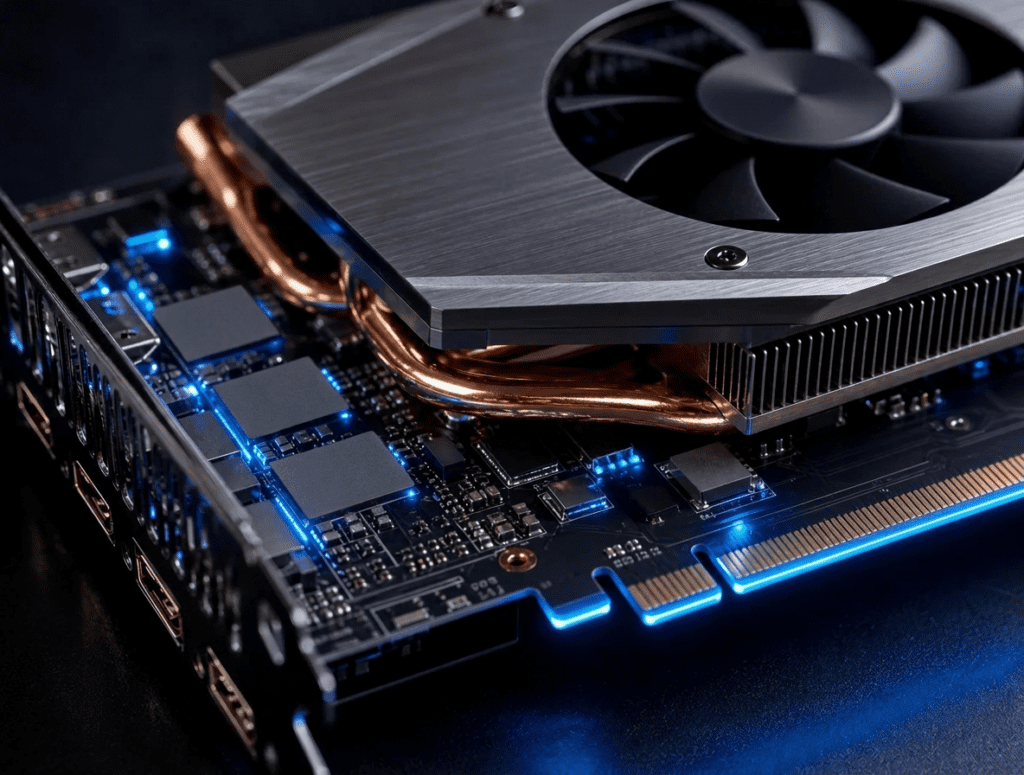
Running an AI model on your own PC depends mostly on one number: how much video memory (VRAM) your graphics card has. If the model fits in VRAM, it runs fast. If it does not, it spills into system RAM and slows down a lot. This guide gives you a simple way to estimate what you need, with the usual rough numbers.
Why VRAM matters
An AI model is a large set of numbers (parameters) that must be loaded into memory. The GPU can only work quickly on data held in its own VRAM. When there is not enough VRAM, part of the model sits in system RAM and the CPU does part of the work, which is much slower.
A simple way to estimate the memory needed
Memory for the model is roughly the number of parameters multiplied by the bytes used for each parameter. Quantization reduces the bytes per parameter, which makes the model smaller with some loss in quality.
- 16-bit: about 2 bytes per parameter
- 8-bit: about 1 byte per parameter
- 4-bit: about 0.5 bytes per parameter
Add roughly 1 to 3 GB or more for the context (the conversation the model remembers) and software overhead. The exact number depends on the program and context length. Context length and VRAM for local AI explains why a longer context needs more memory.
Rough examples
- 7B model: about 14 GB at 16-bit, 7 GB at 8-bit, 4 to 5 GB at 4-bit
- 13B model: about 26 GB at 16-bit, 13 GB at 8-bit, 7 to 8 GB at 4-bit
- 70B model: about 140 GB at 16-bit, 70 GB at 8-bit, 35 to 40 GB at 4-bit
These are estimates for planning. Check the model's page for the real size.
What each VRAM size can usually run
- 8 GB: small models (around 7B to 8B) at 4-bit
- 12 GB: up to around 13B at 4-bit, or small models at higher quality
- 16 GB: larger small models at higher quality, or around 20B at 4-bit
- 24 GB: around 30B at 4-bit
- 48 GB or more: the 70B class at 4-bit
These are rough guides, and results depend on the software and the model. To check a whole PC (CPU, RAM and GPU) against a model, use the checklist in can my PC run local AI models.
How much system RAM do you need?
With a GPU, 16 GB of system RAM works for small models, and 32 GB gives more room. If you run a model on the CPU only, the whole model must fit in system RAM, and it will be slower. 'AI PC' labels often refer to an NPU, which is aimed at light background AI tasks. Large local models still depend mainly on GPU memory and RAM.
How to check your VRAM
- Press Ctrl + Shift + Esc to open Task Manager.
- Open Performance and select your GPU.
- Read Dedicated GPU memory. That is your VRAM.
You can also press Windows + R, type dxdiag and look at Display Memory on the Display tab.
Tips for running models on limited VRAM
- Choose a 4-bit or other quantized version of the model.
- Reduce the context length, since a long context uses more memory.
- Close the browser and other apps that use the GPU.
- Keep the graphics driver up to date. See how to update graphics drivers.
- Watch temperatures, since AI workloads keep the GPU busy for long periods. See fix a PC that keeps overheating.
If you are planning a new PC for AI, how to build a PC for local AI gives a parts priority list, and our guide on building a budget gaming rig covers choosing parts for games. Once your hardware is ready, Ollama vs LM Studio compares two easy tools for running a model. For more hardware guides, browse our PC repair guides.
FAQ
Can I run AI models with an 8 GB graphics card? Yes, small quantized models run well. Larger models will be slow or will not fit.
Is more VRAM or a faster GPU better for AI? For fitting bigger models, more VRAM matters most. A faster GPU then helps speed.
Can I run a model without a dedicated GPU? Yes, on the CPU, but it is much slower, and the model must fit in system RAM.