Can My PC Run Local AI Models? A CPU, RAM and GPU Checklist
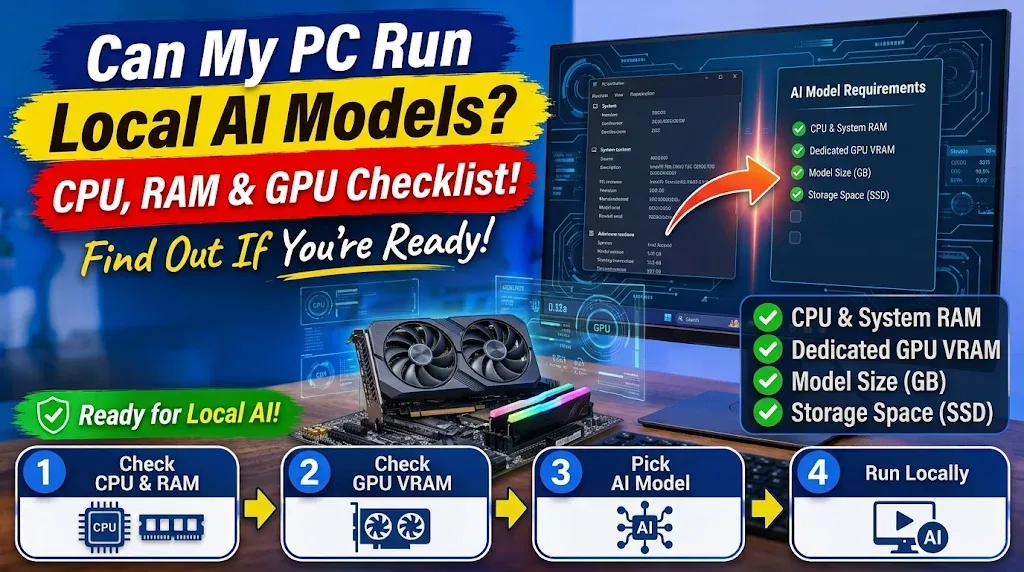
Many PCs can run some local AI models, but the size and speed you can expect depend on available memory more than a marketing label. A dedicated GPU with enough VRAM is usually the fastest option. A CPU-only PC can still run smaller, quantized models, although generation will be slower and larger models may not fit in memory.
Start with the hardware you have, then choose a model size that fits comfortably rather than chasing the largest number of parameters. For more hardware checks, browse the PC repair guides.
Step-by-step: check local-AI readiness
Step 1: Record your CPU, RAM and GPU
Open Task Manager > Performance and note the processor, installed memory and graphics hardware. For a dedicated GPU, note its VRAM amount—not only the PC’s total system memory. The PC specifications guide shows where to find these details.
Step 2: Check the GPU’s VRAM
In Task Manager, select the dedicated GPU and look for Dedicated GPU memory. VRAM is important because many local-AI tools load as much of the model as possible there. Read the VRAM guide for local AI before choosing a model.
Step 3: Allow for model size and overhead
The model file is not the only memory requirement. The AI tool, context window, operating system and other programs also need memory. For how the context length affects memory use, see context length and VRAM explained. Do not expect a model that barely fits on paper to run smoothly while browsers and games are open.
Step 4: Use quantized models when resources are limited
Quantization reduces model size and memory use, often with a trade-off in quality or speed. It is a practical way to run smaller models on ordinary hardware. See AI model quantization explained for the basic idea.
Step 5: Choose a realistic first setup
- Dedicated GPU with suitable VRAM: start with a model that fits in VRAM and use a supported GPU-enabled tool.
- Integrated graphics or limited VRAM: start smaller, use quantized models and expect lower speed.
- CPU only: use the CPU-only approach in this local-AI guide, with modest model sizes and enough system RAM.
Step 6: Test one model before upgrading hardware
Install a local-AI tool and try one recommended small model before buying parts. Measure speed, memory use and whether the output meets your needs. The full setup process is covered in how to run AI locally in Windows. If you are thinking about building a machine for this, see our parts checklist for building a PC for local AI.
FAQ
Can I run local AI without a graphics card? Yes. A CPU-only setup can run smaller, quantized models, but it will normally be slower.
Is more system RAM the same as more VRAM? No. System RAM and GPU VRAM are separate. Some tools can use system RAM when VRAM is full, but that is usually slower.
Does an NPU replace a GPU for local AI? Not for every workload. An NPU is efficient for supported tasks, while a GPU remains important for many heavier local-model workloads. To check whether your own PC has one, see our how to check whether a PC has an NPU guide.