How to Check Whether Your PC Has an NPU in Windows
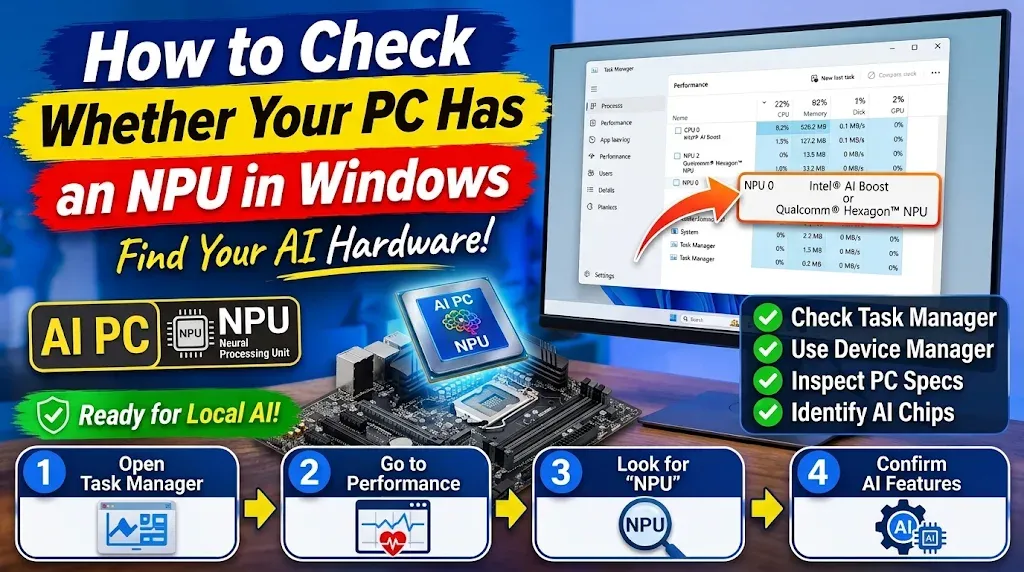
An NPU, or neural processing unit, is a processor designed to run certain AI tasks efficiently. It is separate from the CPU and GPU. Windows features and some apps can use an NPU for supported background effects, transcription or on-device AI work, but an NPU does not automatically make every AI app fast. This guide shows how to find out whether your PC has one, with what you should see at each step.
Step-by-step: check for an NPU
Step 1: Check Task Manager
Press Ctrl + Shift + Esc to open Task Manager, then select Performance. On recent Windows 11 versions with the right driver, an NPU appears as its own entry in the left-hand list, alongside CPU, Memory, Disk and GPU. Select it to see current activity.
You should see: an entry named NPU 0 or similar. If you do not see one, that does not prove the PC has no NPU. Your Windows version or driver may not show it there. Continue with Steps 2 and 3.
Step 2: Check the exact processor model
Open Settings > System > About and note the Processor name, or follow how to check your PC specs in Windows. Search the exact model on the processor maker’s official specification page and look for NPU, AI Boost, Ryzen AI, Hexagon NPU or similar wording. Laptops sold as Copilot+ PCs need an NPU rated at 40 TOPS or more, according to Microsoft’s description of that label, so a smaller NPU can exist without the PC being Copilot+.
You should see: an NPU listed in the specifications. If the page names no NPU, your PC probably does not have one.
Step 3: Check Device Manager and Windows Update
Right-click Start, open Device Manager and look for a category named Neural processors. If it is missing, also check System devices and Other devices for an item with a yellow warning mark. A missing driver is a common reason an NPU does not show. Install Windows updates (see fix Windows Update if they fail), then the chipset or processor driver from the PC maker’s support page for your exact model. Avoid driver-download sites that promise one-click updates, and see how to update drivers in Windows 11 safely.
You should see: the NPU appear after the driver installs and the PC restarts. If it does not, the hardware is probably not present.
Step 4: Understand what the NPU is for
An NPU is best for compatible, efficient AI workloads. It does not replace a dedicated GPU for every large local model or game. For an overview, see what an AI PC and NPU are. If you want to run larger local models, see running AI locally in Windows and VRAM requirements.
If your PC does not have an NPU
That is normal, especially on older hardware. Your CPU and GPU can still run many AI features and applications. Whether an upgrade makes sense depends on the apps you use, not only on the “AI PC” label. To see what your PC can handle for local models, read our checklist for whether a PC can run local AI models.
More help
For other checks, see the PC repair guides home page.
FAQ
Can I add an NPU to my existing desktop? Usually no. An NPU is normally built into the processor platform, so adding one often means changing the CPU and possibly the motherboard.
Does every Windows 11 PC have an NPU? No. Windows 11 runs on many PCs that do not include an NPU.
Is an NPU the same as a graphics card? No. A GPU is more general-purpose and often better for heavy graphics and many local AI workloads. An NPU focuses on supported AI tasks with low power use.