Ollama vs LM Studio: Which Local AI Tool to Use?
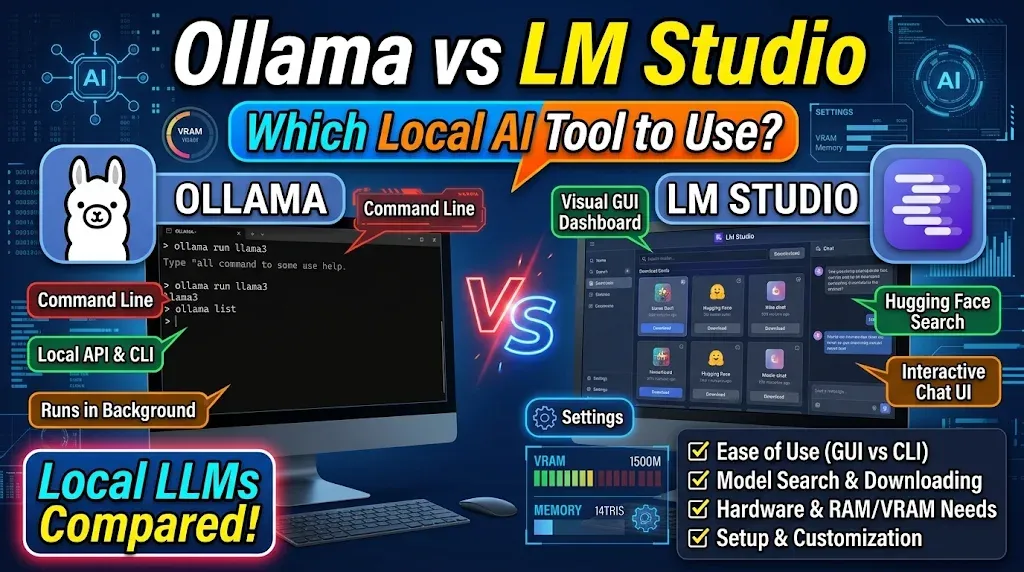
Ollama and LM Studio are two of the most popular tools for running AI models on your own PC. Both let you chat with a model without sending your prompts to a cloud service. They work differently, so the best one depends on how you like to work. These tools change quickly, so check each tool's website for the latest features and license terms.
The short version
- Choose LM Studio if you want a graphical app where you search for models, download them and chat, with settings you can adjust by clicking.
- Choose Ollama if you are comfortable with the command line, or you want a simple background service that other programs can use.
- You can install both. Each keeps its own model files, so a model downloaded in one is not shared with the other.
How they compare
Ease of use
- LM Studio: a desktop app with a model browser, a chat window and settings screens. Good for beginners.
- Ollama: known for its simple command-line use: you run a command with a model's name and it downloads and starts it. Recent versions also include a desktop app with a chat window, so check what the current version offers.
Finding and downloading models
- LM Studio: lets you search and download models from public model hubs inside the app, and shows file sizes and whether a model is likely to fit your hardware.
- Ollama: has its own library of ready-to-run models that you pull by name.
Settings and control
- LM Studio: shows settings such as context length and how many layers run on the GPU in the interface.
- Ollama: is configured with environment variables for the server (for example
OLLAMA_HOST) and with a Modelfile for a model's own settings. This suits scripting and automation.
Using them from other programs
Both can run a local server, so other apps and scripts on your PC can talk to the model through an API. By default Ollama listens on 127.0.0.1:11434 (your own PC only), and LM Studio's local server uses port 1234 and offers OpenAI-compatible endpoints. Both addresses can be changed in each tool's own settings. This is useful for developers and for tools that connect to a local model.
Hardware needs
The hardware needs are about the same, because both run the same kind of models. What matters most is your graphics card's VRAM and your RAM. If you change the context length, see how context length uses VRAM. See how much VRAM you need, AI model quantization explained and run local AI without a GPU.
Privacy
Your prompts stay on your PC when you run a model locally. Check each tool's settings for anything it sends, such as update checks or usage data, and keep a local server on 127.0.0.1 unless you deliberately want other devices to reach it.
Step-by-step: pick the right one
Step 1: Decide how you want to work
If you want clicks and a chat window, start with LM Studio. If you want commands and automation, start with Ollama.
Step 2: Check your hardware
Open Task Manager > Performance and note your RAM and, under GPU, the Dedicated GPU memory.
You should see: a number such as 8 GB or 12 GB of dedicated GPU memory. If the GPU entry is missing or shows 0 or very little, plan for CPU-only use (see run local AI without a GPU).
Step 3: Install one tool
Download it from the official website only. Follow how to run an AI model locally on Windows for the full setup.
You should see: the app opens (LM Studio), or the Ollama icon appears in the system tray, or ollama --version prints a version number in a Terminal window. If it does not, restart the PC once and open it again, and check that Windows did not block the installer.
Step 4: Try a small model
Choose a small, quantized model whose file size is well below your VRAM, then ask it a few questions you care about.
You should see: answers start without a long delay. If the model will not load or the PC runs out of memory, pick a smaller model or a lower quantization. If answers are very slow and Task Manager shows the GPU idle and the CPU busy, the model is running on the CPU: choose a model that fits in VRAM, or update your graphics driver (see how to update drivers in Windows 11).
Step 5: Switch if it does not suit you
Trying the other tool is usually free for personal use, but check its current license terms. Your downloaded models may need to be downloaded again, because each tool keeps its own files. You can delete a tool's models from its own model list when you no longer need them, to free disk space.
Once a model runs well, you can also ask it questions about your own files: see chat with your own documents using local AI.
More help
For other PC problems, see the PC repair guides.
FAQ
Are Ollama and LM Studio free? Both have free options for personal use, but check each tool's current license terms.
Which is faster? Speed depends mostly on your hardware and the model, not on the tool.
Can I use both? Yes. Many people try both and keep the one they prefer.