Chat With Your Own Documents Using Local AI
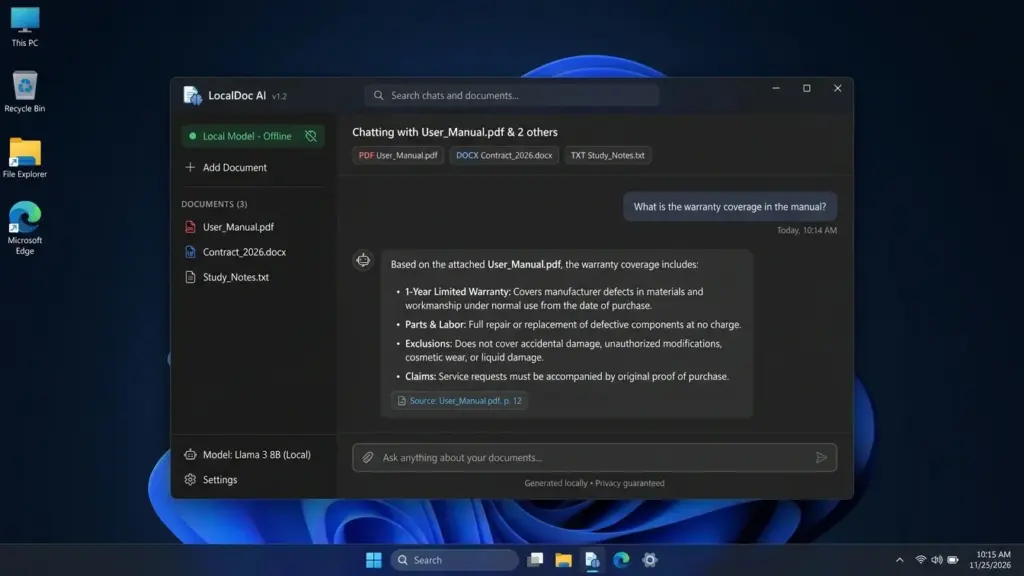
Document chat lets a local AI model answer questions about your own files. Think of a manual, a contract or your notes. Nothing is sent to an online service. A model does not know your files by itself, so the tool gives it the right passages when you ask. This guide shows how that works and how to try it with two free desktop apps. It also shows how to check that the answers are right.
How document chat works
- If the file is short, it fits in the model's working memory (its context). The app then adds the whole text to your question.
- If the file is long, the app uses retrieval-augmented generation (RAG). It splits the text into pieces and turns each piece into numbers (an embedding). It stores them in an index.
- When you ask a question, it finds the pieces that best match. It adds only those to your question.
- The model reads them and writes an answer based on them.
The model sees only a few matching pieces. A question that needs the whole document can therefore fail, and a vague question can pull the wrong pieces.
Step-by-step: try it with LM Studio
LM Studio's own documentation says you can attach .docx, .pdf and .txt files to a chat. A short file goes in full. A long one switches to RAG. See Ollama vs LM Studio if you have not chosen a tool yet.
Step 1: Pick one small test file
Choose a text-based PDF, Word file or text file that you know well. Then you can tell whether the answers are right. A scanned PDF is only a picture and has no text. It needs text recognition (OCR) first, or the model will read nothing.
Step 2: Check your hardware
The model plus the pasted passages must fit in memory. A longer context uses more memory (see how much VRAM you need and context length and VRAM). If the PC slows down or the app runs out of memory, use a smaller model or a shorter file.
Step 3: Attach the file
In LM Studio, load a model and open a new chat. Drag the file into the chat window, or use the attach button. LM Studio's release notes have mentioned a 30 MB limit for PDF and Word files, so check the current notes if a large file is refused. Start with one file in a chat.
You should see: the file name shown above your message box. If it does not appear, the file type may not be supported, or it is too large.
Step 4: Ask a narrow question with the words you expect
LM Studio's documentation advises giving as much context in the question as you can. Include terms you expect to find in the file. Instead of "Summarise this", ask: "What does the warranty section say about battery replacement?" Ask the model to quote the sentence it used.
Step 5: Check the answer against the file
Open your file, search for the quoted words (Ctrl + F) and read the surrounding text. You should see: the same passage, word for word. If you cannot find the quote, the answer is not reliable. Ask again with more detail, or try a larger model.
Step-by-step: a whole folder with GPT4All
GPT4All's LocalDocs feature indexes a folder with an on-device embedding model. It then adds the matching snippets to your question. Its documentation says you can see which files were used by clicking Sources under an answer.
- Put the files you want in one folder. Remove duplicates and old versions.
- In GPT4All, open LocalDocs, choose Add Collection, name it and pick the folder.
- Wait for the indexing to finish. It can take a while for large folders, and the app shows a progress counter.
- Start a chat, switch the collection on, and ask your question.
You should see: a Sources link under the answer. Open it and read the snippet. If the snippet does not say what the answer says, do not trust the answer. Text, Word, PDF and Markdown files are common choices; if a file is skipped, check the app's list of supported types.
Common mistakes
- Indexing everything at once. A big folder of mixed, old and duplicate files gives muddled answers. Start with a few relevant files.
- Using a scanned PDF. It has no text, so the tool finds nothing and the model may guess.
- Asking a broad question. "What is in these files?" pulls random pieces. Ask about one fact or section.
- Trusting an answer with no source. Always open the quoted passage. This matters most for legal, medical and money questions.
- Forgetting to refresh the index after you change or replace a file. The model then answers from the old text.
- Expecting tables and charts to work. They are often read badly. Copy the key numbers into a text file instead.
A safer alternative for sensitive files
If a file holds passwords, medical or financial details, do not feed it to a tool you have not checked. Look at where the app stores its index and chat history. Check whether it connects to the internet (see is local AI private and safe). When in doubt, copy only the one paragraph you need into the chat. Or search the file yourself with Ctrl + F.
Sources
The file types and the short-versus-long behaviour come from LM Studio's Chat with Documents page. The folder indexing and the Sources link come from GPT4All's LocalDocs page. Apps change, so check the current pages if a button has moved.
More help
For more guides on running AI on your own PC, and for general PC help, visit the PC Repair Atlas homepage.
FAQ
Do I need to train the model on my files? No. The tool gives the model the relevant text at question time.
Can it read scanned PDFs? Only after text recognition.
Is it private? It can be, if everything runs on your PC. Check your tool's settings and network behaviour.
Why does it say it cannot find something that is in my file? The matching step may have picked the wrong pieces. Ask again using the exact words from the file.