Is Local AI Private and Safe? What to Check on Windows
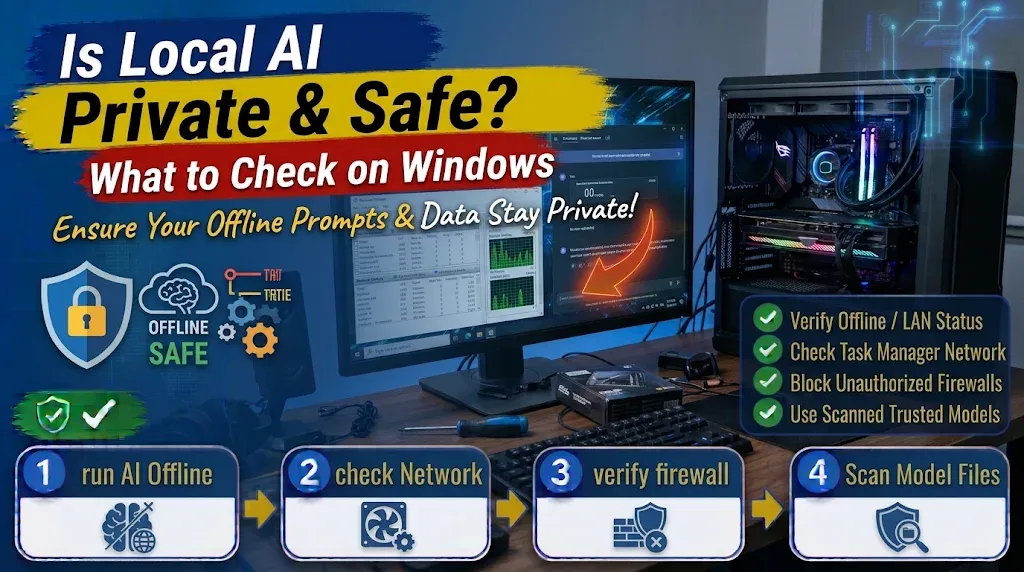
One reason people run AI models on their own PC is privacy: the prompts and answers stay on the computer. That is largely true, but not automatic. Tools can send usage data, local servers can be open to your network and model files can be unsafe. This guide lists what to check, with the exact place to look for each.
What stays local
When a model runs on your PC, your prompts and its answers are processed on your hardware, and they do not need the internet. Features that search the web, call online services or sync data do use the internet, so check which ones you turn on. Whether your PC has the power for this is covered in our guide on checking if your PC can run local AI models.
Step-by-step: check privacy and safety
Step 1: Use official tools and read their privacy settings
Download the tool from its official website (see Ollama vs LM Studio for two common choices). Open its settings and look for analytics, usage reports and update checks. Turn off what you do not want, and read the tool’s current documentation, since behavior can change between versions. You should see each option clearly on or off. If a tool has no setting for something you care about, treat it as on.
Step 2: Check the local server
Many tools can run a local server so other programs can use the model. Start the tool’s server, then open Terminal and run:
netstat -ano | findstr LISTENINGFind the port your tool uses (Ollama normally uses 11434 and LM Studio’s server normally uses 1234, but check the tool’s own settings). Read the Local Address column. 127.0.0.1 means only this PC can reach the server, which is the safe result. 0.0.0.0 or [::] means other devices on your network can reach it too. If you did not mean to share it, change the tool’s setting back to local only and restart it. In the Windows Firewall prompt, allow Private networks only, and only if you need sharing at all. If you do share it, also secure your router, see how to secure your home Wi-Fi router.
Step 3: Watch the network activity
Open Resource Monitor (search for it, then open the Network tab) or Task Manager’s Network column. Chat with the model and see whether the tool sends or receives data. Short bursts for update checks are normal, but steady uploads during a chat deserve a closer look. You should see little or no network activity from the tool while the model answers. If you see steady uploads, check its privacy settings again or stop using it until you know why.
Step 4: Download models from trusted sources
- Use well-known publishers and the official model pages.
- Prefer file formats designed to hold only model data, such as GGUF or safetensors. Older formats based on Python’s pickle can run code when loaded, which makes them riskier.
- Check the file size and, when given, the checksum.
- Read the license, since some models limit commercial use.
Step 5: Scan what you download
Keep your security software on. If you doubt a file, scan it (see remove a virus or malware). Do not run installers or scripts that come with a model download unless you know the publisher. To test an unfamiliar installer in isolation first, see how to use Windows Sandbox to test suspicious files.
Step 6: Know where your chats are stored
Some tools save chat history on your drive. Find the folder in the tool’s settings, delete old chats you do not want to keep, and consider encrypting the drive with BitLocker or Device encryption (where your edition offers it) if the PC holds sensitive information. Back up your recovery key before you turn it on. If you plan to load your own files into a local model, read chat with your own documents using local AI first, since those files are often the most private data on the PC.
Step 7: Test offline
Disconnect from the internet and use the model. If it works, the answers are produced locally. Remember that any web search or plug-in features will stop working, so a failure with those features is expected, not a fault.
Step 8: Keep everything updated and backed up
Update the tool and Windows, and keep a backup of important files (see how to back up your Windows PC).
Limits to remember
Local does not mean correct. Models can make mistakes, so check important facts, especially for medical, legal or financial questions.
More help
For more guides on running AI on your own PC and on general PC help, visit the PC Repair Atlas homepage. To set up a tool, see how to run an AI model locally on Windows.
FAQ
Is local AI private by default? Often, but not always. Check each tool’s settings and network activity.
Can a model file contain malware? Some older file formats can run code when loaded. Use trusted sources and safe formats.
Do I need a firewall rule? Only if you share the local server on your network. Otherwise keep it on your own PC.