What Does My USB-C Port Support? Charging, Data and Video Explained
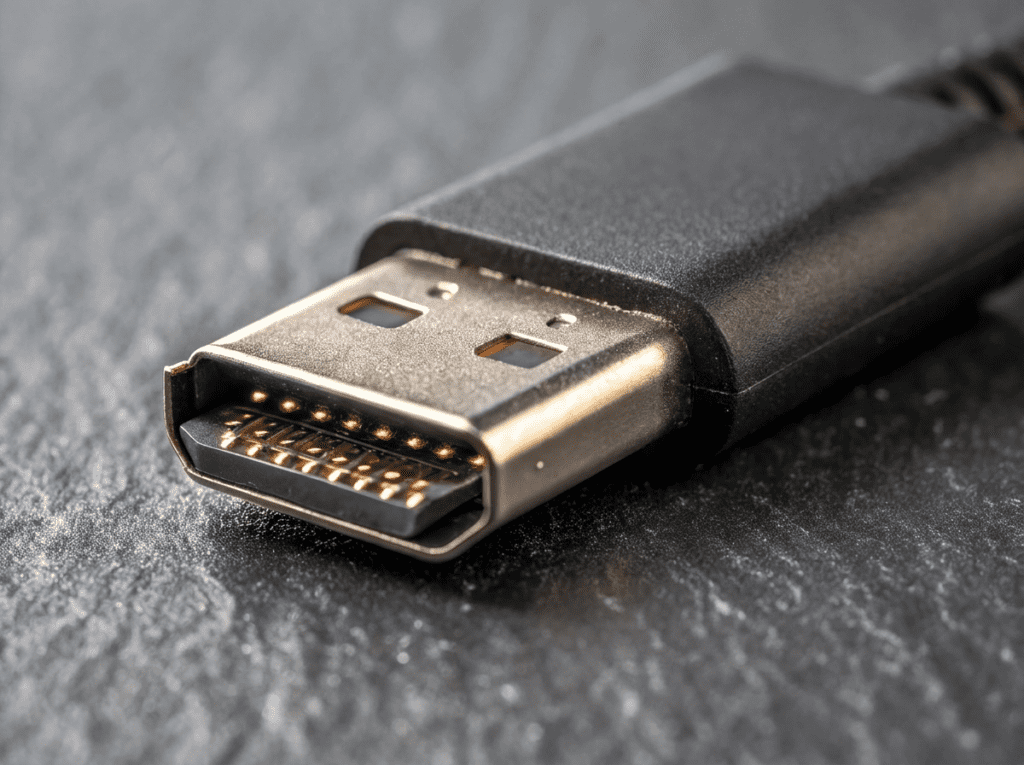
USB-C port support is not the same on every laptop. One port may charge the laptop, move files and drive a monitor. The next port on the same laptop may do only one of those jobs. So a USB-C port that seems dead is often just a port that was never built for the job you gave it. This article helps you find out what your port supports, then fix what fails in Windows 11. For other faults, browse our PC repair guides.
Safety: none of the steps changes the registry or BIOS. Never push a metal tool into a port. Stop using a port that smells of burning, feels hot or has bent contacts.
USB-C Port Support: Why One Port Can Do Less Than Another
USB-C describes the shape of the plug, not what the port can do. Behind the same oval hole, a maker can fit a simple data port, a charging port, a video port or a fast Thunderbolt or USB4 port. The cable and the device on the other end must support the job too.
| What fails | Most likely reason | Start with |
|---|---|---|
| Charges, but no files or devices | Charge-only cable, or a port set up for power only | Checks 2 and 4 |
| Files and devices work, no picture | Port or cable without video support | Checks 1 and 4 |
| Works directly, fails through a hub or dock | Hub, dock or its power supply | Check 3 |
| Nothing works in this port, other ports are fine | Port limits, driver or damage | Checks 6 to 8 |
| Windows shows a message about limited function | Port, cable or device does not match | Check 5 |
This article is about matching the port, cable and device. If a screen stays blank, see USB-C Laptop Charges but Monitor Has No Signal?. If a laptop does not charge at all, use How to Fix a Laptop That Is Plugged In but Not Charging. For a device that Windows never recognizes, see How to Fix USB Device Not Recognized.
Check 1: Find Out What Your Port Supports
Look up your laptop's model on the maker's support page and read the port list. It usually says which ports support charging, data speed, DisplayPort video, Thunderbolt or USB4.
Many laptops also print a small symbol beside each port. A lightning bolt usually means Thunderbolt. A D-shaped DisplayPort logo means video output. A battery or plug symbol means charging. Symbols and speed numbers vary, and some laptops print none, so the specifications are more reliable.
You should end up with a list such as "port 1 charges and outputs video, port 2 is data only". Test the failing job on the port that supports it before you assume anything is broken.
Check 2: Test the Port With a Different Job
Change one thing at a time so the result means something.
- Safely eject any USB storage device, then unplug the device that fails.
- Select Start > Power > Restart.
- Plug in a simple device, such as a USB flash drive or a phone that is already known to work.
- Then try the job that failed.
If the simple device works, the port has power and data. The fault then sits with the cable, the hub or the video or charging function. If even the simple device does nothing, go to Checks 6 and 7.
Check 3: Bypass Hubs, Docks and Adapters
A hub or dock adds more parts that must support the job. Disconnect it and plug the device straight into the laptop.
- Works when plugged in directly: the hub, dock or adapter is the cause. Check that it has its own power adapter if it needs one, and that the maker lists your laptop as compatible.
- Fails in both cases: go to Check 4.
You should see the device start working as soon as the weakest link is out of the chain.
Check 4: Try Another USB-C Cable
USB-C cables look alike but do different things. Some carry only power. Some carry data but no video. Only a few carry high-speed data, video and high power together.
- Try the cable that came with the device or the laptop.
- Try a second cable that says it supports the job you need, such as data, video or fast charging.
- Try the same cable in another port that supports the job.
You should see the problem follow the cable if the cable is at fault. If it follows the port, go on to Check 5. Our guide on choosing a laptop charger and USB-C cable explains the cable ratings.
Check 5: Read the Windows USB Notification
Windows can tell you why a USB-C connection is limited. In Windows 11, open Settings > Bluetooth & devices > USB. The exact place can differ between Windows builds. Turn on the connection notifications if that option is there.
Plug the device in again and read the message. Microsoft lists messages such as "USB4, Thunderbolt or Display connection functionality might be limited", "Use a different USB port" and "This USB device might need more power" in Fix USB-C problems in Windows.
- Limited function: the port, the cable and the device must all support that function. Use a port and cable that do.
- Needs more power: plug the laptop into its approved adapter and unplug other devices. If the device has its own power supply, connect it.
No message does not prove everything is fine, but a message tells you exactly what to change.
Check 6: Look in Device Manager
- Right-click Start and open Device Manager.
- Expand Universal Serial Bus controllers. If you see Other devices, expand it too.
- Look for a yellow warning triangle.
- Right-click that entry, select Properties and read the message and code under Device status.
You should see either no warnings, or a named device with an error code. Use that code to choose the next step.
For driver problems, check Settings > Windows Update or your laptop maker's support page. Do not download drivers from unfamiliar sites. Our guides on updating drivers safely and Windows Update problems help if an update will not install.
Check 7: Check Power and Windows Files
If the laptop runs on a low battery or a weak adapter, Windows may limit what USB-C ports provide. Plug in the approved adapter, wait a minute and test again.
If a device only fails after a Windows update, SFC and DISM check Windows files. A BIOS update can also fix port faults, but only update it when the maker's release notes mention USB-C or Thunderbolt, and follow our guide to updating the BIOS safely.
Sleep can also affect USB ports. If the problem starts after waking the laptop, see Windows 11 USB Ports Stop Working After Sleep?.
Check 8: Decide Whether the Port Is Damaged
Test the same cable and device on another compatible computer. If they work there but several known-good devices and cables fail in one port of your laptop, hardware damage becomes more likely.
Look at the port with a torch for a loose connector, bent contacts or debris. Do not use metal tools. Compressed air in short bursts can clear dust. Replacing a port is a repair job, so try Checks 1 to 7 first and ask the maker or a technician to test it.
FAQ
Why does my USB-C port charge but not transfer files? The cable or the port may support charging only. Confirm what both support, then try a cable that is made for data.
Can Windows Update fix a USB-C problem? Sometimes. Compatible driver and firmware updates can fix certain detection issues, so check for updates after the cable and port tests.
Can I connect two PCs with a USB-C cable? Not directly. A plain USB-C cable is not a standard way to link two Windows PCs, so use a network connection or a dedicated transfer tool instead.
Should I replace the port straight away? No. Test the cable, the connected device, the power source and the software first. Consider a repair only after those tests fail.
Final Thoughts
A USB-C connection that fails does not always mean an expensive repair. Start with what the port supports, then check the cable, hub, power and Windows messages in that order.