How to Choose the Right Laptop Charger: Wattage, Voltage and USB-C
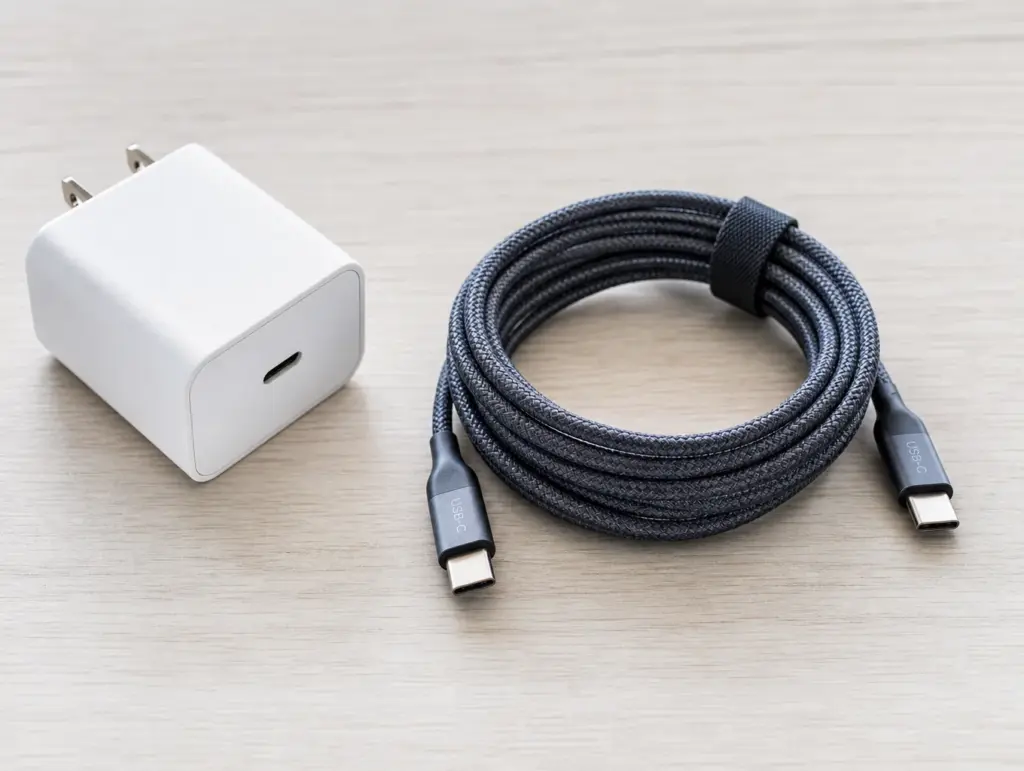
The safest replacement charger is the manufacturer-approved adapter for your exact laptop model. If you must choose another charger, match the connection and electrical requirements rather than relying on how it looks. A plug that fits is not enough.
USB-C makes charger choice more flexible on supported laptops, but not every USB-C charger supplies enough power or supports the same features.
Step-by-step: choose a compatible charger
Step 1: Read the original charger label
Look for Output, which lists voltage (V), current (A) and sometimes wattage (W). Wattage is voltage multiplied by current, so 19.5 V at 3.34 A is about 65 W. Record the exact laptop model too; the label and model tell you more than the connector shape alone. You should have the output voltage and the wattage written down.
Step 2: Match the connection type
Older laptops often use a round barrel connector, which must match the pin size and polarity. Do not force a near-match. For a barrel charger, the voltage must match the original (not just be close) unless the laptop's manual lists a range. A higher voltage can damage the laptop. For USB-C laptops, use a charger and cable that support USB Power Delivery where required by the manufacturer.
Step 3: Meet or exceed the required wattage
A replacement charger should provide at least the laptop's required wattage at the required voltage. A lower-wattage charger may charge slowly, fail to charge under load or reduce performance. A higher-wattage USB-C charger is normally safe on devices that negotiate USB Power Delivery, because the laptop only draws what it needs, but use the manufacturer's guidance for the exact model.
Some makers, such as Dell, put an identification pin in the plug of barrel chargers. With a charger that is not the maker's, the laptop may show a warning that the adapter wattage and type cannot be determined, charge slowly, or slow down the processor. Dell's own support pages describe this warning and say to use the original charger.
Step 4: Check the cable as well as the adapter
For USB-C charging, the cable can limit delivered power. As a rule of thumb from the USB Power Delivery standard:
| Power you need | Cable you need |
|---|---|
| Up to 60 W | A normal USB-C cable rated for 3 A |
| 60 W to 100 W | A cable rated for 5 A, with an e-marker chip |
| Above 100 W (up to 240 W) | A cable and charger that support the Extended Power Range (EPR), rated for 240 W |
A weaker cable does not normally break anything, because the charger lowers the power to suit the cable, but the laptop may charge slowly. Use a suitable rated cable from a reputable maker. A damaged cable or loose port can look like a charger problem; compare your symptoms with this plugged-in but not charging guide.
Step 5: Avoid fake and unsafe chargers
Very cheap chargers with brand names and no safety marks can be counterfeit, and a bad charger is a fire and shock risk. Buy from a known seller, check that the label shows safety approval marks for your region and a real wattage, and avoid chargers that are far lighter than the original.
Step 6: Test safely after replacement
Connect the charger with the laptop on a hard surface and check whether Windows reports charging. Test a normal workload after the battery has some charge. You should see the charging icon and a rising battery level, with the charger only warm. Stop using the adapter if it becomes unusually hot, makes noise, smells burnt or repeatedly connects and disconnects. To check the battery itself afterwards, see how to check your laptop battery health.
If it does not work
- The laptop says plugged in, not charging: see the plugged-in but not charging guide.
- It charges only to 80 percent: this is often a battery-care setting, see why a laptop stops charging at 80 percent.
- The laptop shuts off when unplugged: the battery may be worn, see laptop shuts off when unplugged.
More help
For more laptop and hardware guides, browse the PC repair guides on PC Repair Atlas.
FAQ
Can I use a lower-wattage USB-C phone charger? It may maintain charge during light use, but it often cannot power or charge a laptop properly under load.
Why does my laptop charge only to 80 percent? Many laptops have a battery-care limit. Read why a laptop stops charging at 80 percent before buying a new charger or battery.
Can any USB-C port charge a laptop? No. Some USB-C ports carry data or video only. Check the laptop manual for its charging-capable port and required power level.