DNS Server Not Responding in Windows 11? 9 Safe Fixes
When Windows 11 reports "The DNS server isn't responding" (or your browser shows DNS_PROBE_FINISHED_NXDOMAIN or DNS_PROBE_POSSIBLE), your PC is connected to your Wi-Fi or Ethernet network, but it cannot translate website names like google.com into IP addresses. Without a working DNS (Domain Name System) lookup, web pages refuse to load even though your Wi-Fi bars look full.
The problem usually comes down to one of four things: a stalled home router, an ISP DNS outage, a corrupted Windows DNS cache, or a VPN/antivirus firewall blocking DNS traffic. This guide tests your router and network first, then walks through nine safe Windows 11 fixes in order—without wiping your personal files. If your PC shows no internet access at all with other error messages, see Wi-Fi connected but no internet on Windows: 9 fixes. If you use a wired connection that drops completely, see how to fix Ethernet not working in Windows 11. For other Windows and hardware faults, browse our PC repair guides.
Windows 10 note: Windows 10 reached end of support on October 14, 2025, so it no longer receives free security updates. Every fix below—including flushing DNS, switching to Cloudflare or Google DNS, and resetting Winsock—also works on Windows 10 with slightly different Settings menu paths.
Safety Warnings Before You Start
- Check whether other devices on your Wi-Fi are affected before changing Windows settings. If your phone and tablet also cannot load websites on the same Wi-Fi, the fault is your router or internet provider (ISP), not your Windows 11 PC.
- Save your work before running Network Reset (Fix 9). A full Network Reset removes saved Wi-Fi passwords and VPN profiles, so make sure you have your Wi-Fi password handy before using it.
- Do not enter random DNS addresses from untrusted websites. Stick to reputable public DNS resolvers such as Cloudflare (
1.1.1.1), Google (8.8.8.8), or Quad9 (9.9.9.9), or leave DNS on Automatic once your ISP recovers.
Quick Diagnosis: Where Is the DNS Failure Happening?
| What you see | Likely cause | Start with |
|---|---|---|
| Websites fail on every phone, laptop, and TV on your Wi-Fi | Stalled router/modem or an ISP DNS outage | Fixes 1 and 3 |
| Websites fail only on your Windows 11 PC while your phone works fine on Wi-Fi | Corrupted Windows DNS cache, bad adapter settings, or VPN/firewall block | Fixes 2, 3 and 4 |
| Error started right after connecting or disconnecting a VPN | Stuck VPN virtual adapter or kill switch blocking DNS | Fix 2 |
| Only one browser fails while other browsers or apps connect fine | Browser Secure DNS (DoH) setting or proxy extension | Fixes 2 and 6 |
| DNS error returns every time the PC wakes from sleep or restarts | Outdated network adapter driver or damaged TCP/IP stack | Fixes 4, 7 and 8 |
Step-by-Step: Fix DNS Server Not Responding in Windows 11
Fix 1: Restart Your Router, Modem, and Test Another Device
A frozen router DNS relay is the single most common cause of "DNS server isn't responding," especially after a brief power flicker.
- Test a website on your phone while connected to the same Wi-Fi (turn mobile data off briefly so your phone does not fall back to 4G/5G).
- Unplug the power cable from your router and modem (or your combo gateway).
- Wait a full 60 seconds so the internal memory clears completely.
- Plug the modem back in first, wait two minutes for its internet light to turn solid, then plug the router back in and wait for Wi-Fi to return.
You should see: websites load normally on both your phone and your Windows 11 PC. If your phone works on Wi-Fi but your Windows 11 PC still shows a DNS error, continue to Fix 2.
Fix 2: Disconnect VPNs, Proxies, and Test Another Browser
VPNs, third-party firewalls, and leftover proxy settings frequently hijack Windows DNS requests and leave you stranded if the VPN tunnel drops.
- Disconnect and fully quit any VPN app (check the system tray arrow next to the clock and exit it completely).
- Press Windows + I to open Settings, go to Network & internet > Proxy, and make sure Use a proxy server is set to Off (unless your workplace or school requires one).
- Open a different browser (for example, test Microsoft Edge if Chrome fails) to rule out a broken browser extension or browser Secure DNS setting.
- If you use a third-party antivirus with a "Web Shield" or firewall, pause it for two minutes to test—then turn it right back on afterward.
You should see: web pages load immediately if a VPN or proxy was blocking DNS lookups. If websites still fail across every browser, go to Fix 3.
Fix 3: Switch to a Public DNS Server (Cloudflare or Google DNS)
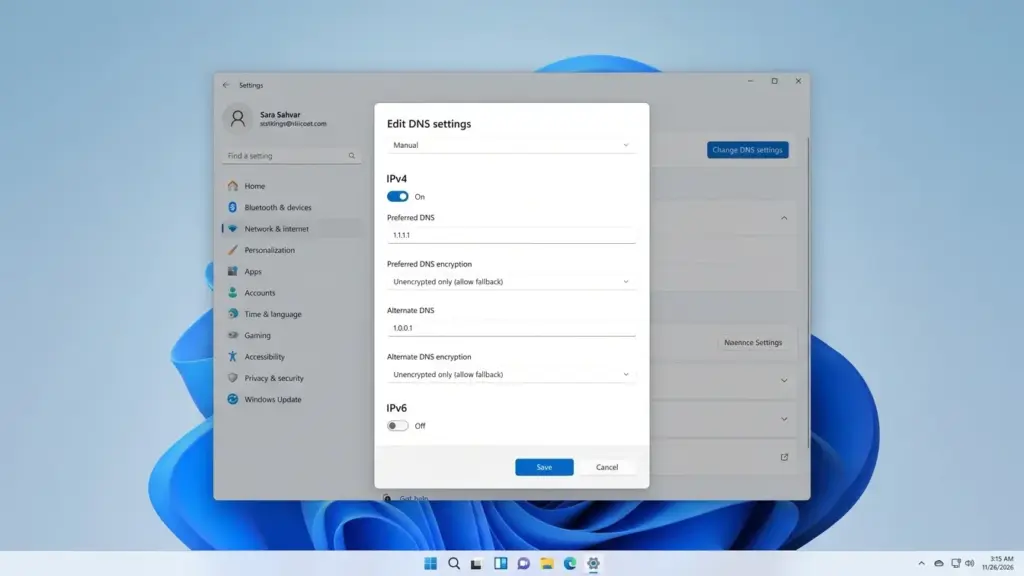
By default, Windows uses your ISP's DNS servers. If your ISP's DNS is down or slow, switching to Cloudflare or Google DNS fixes the problem in under a minute.
- Press Windows + I to open Settings and go to Network & internet.
- Select Wi-Fi (then click your connected network name / Hardware properties) or select Ethernet if you use a cable.
- Next to DNS server assignment, click Edit.
- Change the dropdown from Automatic (DHCP) to Manual, then toggle IPv4 to On.
- Enter one of these trusted pairs:
- Cloudflare DNS: Preferred DNS
1.1.1.1, Alternate DNS1.0.0.1 - Google Public DNS: Preferred DNS
8.8.8.8, Alternate DNS8.8.4.4
- Cloudflare DNS: Preferred DNS
- Click Save, then close and reopen your browser to test a website.
You should see: DNS server assignment display your new IPv4 addresses and websites open right away. If pages still fail to resolve, continue to Fix 4.
Fix 4: Flush the DNS Cache and Reset Winsock/TCP-IP
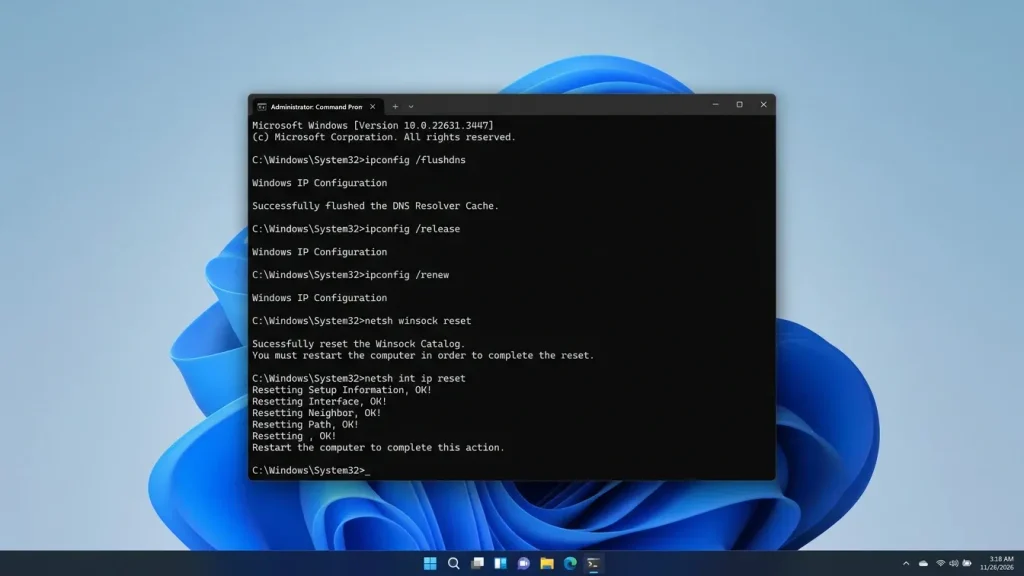
Windows stores recent website lookups in a local DNS cache. If that cache or your Windows networking stack becomes corrupted, even a valid DNS server will fail to respond.
- Right-click Start and select Terminal (Admin) (or search Start for
cmdand choose Run as administrator). - Run these commands one by one, pressing Enter after each:
ipconfig /flushdns
ipconfig /release
ipconfig /renew
netsh winsock reset
netsh int ip reset- Close Terminal and restart your PC (the Winsock and IP resets only take effect after a reboot).
You should see: Successfully flushed the DNS Resolver Cache and Successfully reset the Winsock Catalog before restarting, followed by normal web browsing once Windows loads back up.
Fix 5: Run the Windows 11 Network & Internet Troubleshooter
Windows 11's built-in Get Help network troubleshooter automatically checks whether the DNS Client service is running, verifies gateway reachability, and resets stalled network adapters.
- Press Windows + I to open Settings.
- Go to System > Troubleshoot > Other troubleshooters.
- Find Network and Internet and click Run.
- Follow the on-screen prompts to test your active Wi-Fi or Ethernet connection and apply any suggested fixes.
You should see: either a confirmation that a configuration error was fixed, or a specific diagnostic clue (such as a missing gateway or disabled adapter).
Fix 6: Restart the DNS Client Service and Check IPv6
On some home routers, broken IPv6 DNS routing causes Windows 11 to hang waiting for an IPv6 DNS reply even though IPv4 works fine.
- Press Windows + R, type
services.msc, and press Enter. - Scroll down to DNS Client and confirm its Status is Running (on Windows 11, DNS Client is protected and cannot be manually stopped, which is normal—just verify it is running).
- Next, press Windows + R, type
ncpa.cpl, and press Enter to open Network Connections. - Right-click your active Wi-Fi or Ethernet adapter and select Properties.
- Temporarily untick Internet Protocol Version 6 (TCP/IPv6), click OK, and test your browser. (If this makes no difference, tick IPv6 back on.)
You should see: websites load immediately if your router's IPv6 DNS relay was timing out.
Fix 7: Reinstall or Update Your Network Adapter Driver
A buggy Wi-Fi or Ethernet driver installed by a recent update can break DNS packets while still showing a connected icon in the taskbar.
- Right-click Start and select Device Manager.
- Expand Network adapters.
- Locate your Wi-Fi or Ethernet adapter (such as Intel(R) Wi-Fi 6E, Realtek PCIe GbE Family Controller, or MediaTek Wi-Fi).
- Right-click the adapter and select Uninstall device (leave Attempt to remove the driver for this device unticked), then click Uninstall.
- Restart your PC so Windows reloads the network driver cleanly.
If the error continues: download the latest official Wi-Fi or LAN driver from your laptop or motherboard manufacturer's website on another device, copy it over via USB, and install it. See how to update drivers in Windows 11 safely. If Wi-Fi drops repeatedly alongside DNS errors, see Windows 11 Wi-Fi keeps disconnecting.
Fix 8: Check for Background Software Conflicts (Clean Boot)
If DNS lookups work in Safe Mode with Networking or on a phone hotspot, but fail on your normal desktop, a third-party network optimizer, parental control app, or security suite is likely intercepting port 53 (DNS).
- Uninstall any third-party "internet booster," killer network manager overlay, or unused VPN virtual adapter from Settings > Apps > Installed apps.
- Run a clean boot using how to do a clean boot in Windows 11 to find a software conflict to test with third-party background services paused.
You should see: websites resolve normally during Clean Boot if a third-party utility was blocking DNS.
Fix 9: Run a Full Windows 11 Network Reset
If none of the targeted fixes worked, Network Reset removes and reinstalls all network adapters and resets every Windows networking component back to clean factory defaults.
- Make sure you know your Wi-Fi network password.
- Press Windows + I to open Settings and go to Network & internet > Advanced network settings.
- Click Network reset, then click Reset now > Yes.
- Windows will warn you that it will restart in 5 minutes—save your work and restart right away.
- After restarting, reconnect to your Wi-Fi network with your password and test your browser.
You should see: fresh network adapters installed automatically and web pages loading normally. If system-wide Windows networking files remain broken, run DISM and SFC using how to repair Windows system files with SFC and DISM.
When to Stop and Get Help
- Every device on your home network (phones, TVs, laptops) fails to load websites even after restarting the modem and router and trying Cloudflare DNS (
1.1.1.1): Your ISP has a local line outage or your modem has lost sync—contact your internet provider. - DNS works on your phone's mobile hotspot, but fails on your home router even after a router reboot: Your router's firmware may be corrupted or its WAN port may be failing; check for a router firmware update or contact your ISP if they supplied the router.
- You are on a work, school, or hotel Wi-Fi network: Captive portals (hotel login pages) and corporate firewalls often block custom DNS servers like
1.1.1.1. Switch DNS back to Automatic (DHCP) so the local network can authenticate you.
Common Mistakes
- Forgetting to restart the PC after running
netsh winsock reset. The Winsock and TCP/IP resets do not take effect until Windows fully reboots. - Leaving a static IP or old manual DNS configured when moving to a public Wi-Fi network. Custom DNS settings can break hotel, airport, and coffee shop login screens—switch back to Automatic if a captive portal will not open.
- Running a Network Reset before testing your phone on the same Wi-Fi. If your ISP is having a 10-minute outage, resetting your PC's Wi-Fi settings only wastes time and erases saved passwords.
Sources
- Microsoft Support: Fix Wi-Fi connection issues in Windows — official steps for flushing DNS, resetting Winsock/TCP-IP, running the network troubleshooter, and performing a Network Reset.
- Cloudflare Docs: Set up 1.1.1.1 on Windows — official instructions for configuring manual IPv4 DNS servers in Windows 11 Settings.
More Help
For more Windows 11 networking, Wi-Fi, and error troubleshooting guides, visit the PC Repair Atlas homepage.
FAQ
What does "DNS server isn't responding" mean in Windows 11?
It means your PC is connected to your router, but it cannot reach a DNS server to convert website names (like pcrepairatlas.com) into numerical IP addresses. Restarting your router, flushing the DNS cache, or switching to a public DNS like 1.1.1.1 resolves most cases.
Is it safe to change my DNS to 1.1.1.1 or 8.8.8.8?
Yes. 1.1.1.1 (Cloudflare) and 8.8.8.8 (Google) are widely trusted, free public DNS resolvers. Changing DNS does not delete files or affect your internet plan, and you can switch back to Automatic (DHCP) anytime.
Will running ipconfig /flushdns delete my browser history or saved passwords?
No. Flushing the DNS cache only clears temporary local records of website IP addresses so Windows fetches fresh ones. Your browser bookmarks, history, and passwords stay untouched.
Why does DNS stop responding only after I use a VPN?
When a VPN disconnects abruptly, its virtual network adapter or kill switch can leave Windows pointed at the VPN's private DNS server, which is no longer reachable. Reconnecting and cleanly disconnecting the VPN—or running ipconfig /flushdns—usually clears it.