msvcp71.dll Errors in Windows 10 and 11: Safe Fixes
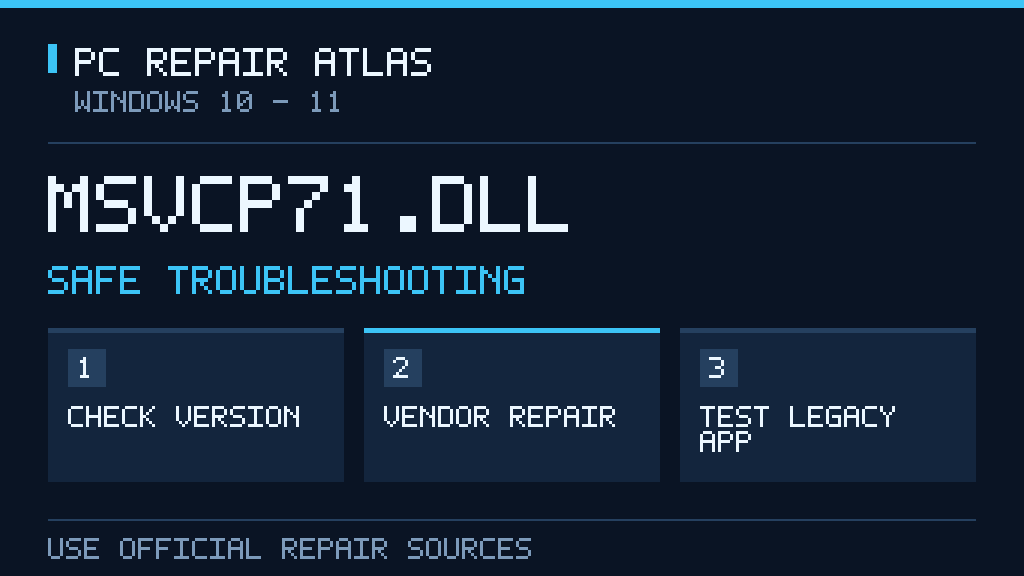
A legacy Windows program reports a missing MSVCP71.dll. If the message specifically names msvcp71.dll, copy the complete text. A DLL that cannot load and a DLL named inside a crash report need different troubleshooting. Avoid downloading a replacement from a standalone file site.
What is msvcp71.dll?
msvcp71.dll is associated with Visual C++ .NET 2003 C++ standard library runtime. Its version and build configuration matter; another runtime with a similar filename is not automatically compatible.
1. Identify the failing operation
Check the original software version, its installation media and the vendor's supported Windows requirements. Modern v14 redistributables do not automatically install this version.
Write down what you were doing when the issue appeared, the application version and the Windows build (run winver). If the program closes without a dialog, open Reliability Monitor with perfmon /rel, select the matching failure and record the application name, faulting module path and exception code. Test a second relevant application or a known-good input when appropriate. Do not share sensitive logs or files publicly.
2. Apply the targeted repair
Use the publisher’s original trusted installer or obtain a supported replacement program. Preserve old project files before reinstalling software.
Consult Microsoft's supported Visual C++ redistributable guidance for the different release families. The architecture required by the application can differ from the Windows architecture. Debug DLLs require a supported development environment, not an arbitrary redistributable.
3. Check the error type if the first repair fails
An entry-point error may indicate that software loaded an incompatible version; Bad Image can indicate an invalid or architecture-mismatched binary. Restore the publisher's original files rather than renaming another DLL or copying one between System32 and SysWOW64. See Bad Image troubleshooting for additional diagnostic steps.
4. When to use Windows system repair
If the fault is confined to one application, focus on that program first. If unrelated Windows components also fail or protected Windows files are suspected, follow Microsoft's system repair guidance in an elevated terminal. Wait for DISM to finish before running SFC.
DISM.exe /Online /Cleanup-image /Restorehealth
sfc /scannow
Retain any error output and restart when required. These tools do not replace the original application installer or supply an unrelated development runtime. If both scans report success but the original problem remains, return to the affected application or device.
Confirm the fix
Open an existing project and perform its usual save or export operation. If the issue persists, send the publisher or administrator the Windows build, software version, error message and the result of each repair. This makes it easier to reproduce the fault without broad changes to the PC.
Frequently asked questions
Can I download msvcp71.dll from a DLL website? No replacement should be sourced from an unverified repository; use the original supported installation or Windows servicing.
Does a DLL error mean I need a registry cleaner? No. Identify the failing dependency or operation first; cleaning registry entries is not a replacement for a matching runtime or a supported driver.
Official documentation and related guides
Microsoft component guidance · Related DLL repair article · PC Repair Atlas
For a legacy C++ application, identify its exact compiler runtime generation rather than substituting a newer DLL. Related guides: MSVCR71.dll troubleshooting; MSVCP100.dll troubleshooting; MSVCP120.dll troubleshooting; DLL Library. Official reference: Microsoft Visual C++ runtime FAQ.