Windows Won’t Shut Down? How to Fix It in Windows 11
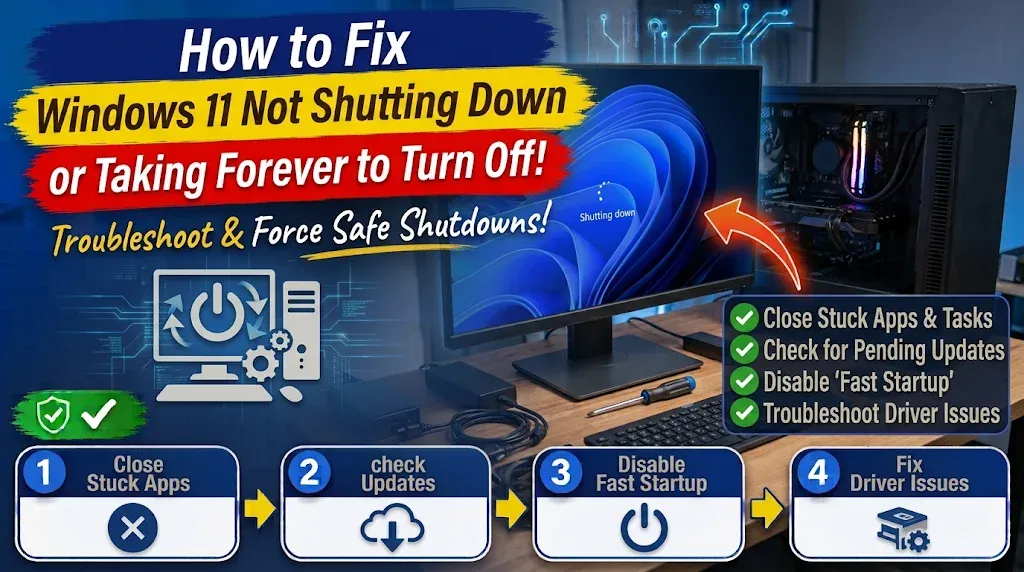
If Windows will not shut down, it may hang on the "Shutting down" screen, take minutes to finish, or restart when you choose Shut down. Holding the power button every time can damage files, so find the cause instead. It is usually a stuck app or service, a pending update, Fast Startup or a driver. The steps below go from the safest checks to the more advanced ones. Stop as soon as the PC shuts down properly.
Before you start: save your work. If the PC is frozen on the "Shutting down" screen right now, wait several minutes first, because Windows may still be closing apps or finishing an update. Hold the power button only as a last resort.
Which symptom do you have?
| What you see | Likely cause | Start with |
|---|---|---|
| "This app is preventing shutdown" | An app that has not closed | Step 1 |
| "Update and shut down" or "Working on updates" | A pending Windows update | Step 2 |
| Restart works, Shut down does not | Fast Startup or a driver | Steps 3 and 4 |
| The PC switches itself back on | A wake setting or a scheduled task | Step 6 and the link in Step 6 |
| Stuck on the spinning "Shutting down" dots | A driver, service or a USB device | Steps 5 to 7 |
Step-by-step: fix shutdown problems
Step 1: Close stuck apps
If Windows says an app is preventing shutdown, save your work and choose Shut down anyway. Note the app's name, because that app is your first suspect. Press Ctrl + Shift + Esc to open Task Manager, select any app marked Not responding and choose End task. You should see the same app not appear in the message the next time you shut down. If it does, update or reinstall that app.
Step 2: Let pending updates finish
If the power menu says Update and shut down, Windows is installing updates, and that can take a long time. Leave the PC plugged in and let it finish. Do not cut the power in the middle of an update. If updates keep failing or loop, see how to fix Windows Update stuck or failing. You should see Shut down (without "update") in the power menu once the update is done.
Step 3: Test with Restart and with a full shutdown
With Fast Startup on, Shut down only half closes Windows, but Restart closes it fully. Try both:
- Choose Start > Power > Restart. If this works but Shut down does not, Fast Startup is the likely cause.
- Hold Shift while you click Shut down. This skips Fast Startup for that one shutdown. If it finishes normally, go to Step 4.
If the PC hangs on the spinning "Restarting" screen instead, see Windows 11 stuck on Restarting: 9 fixes.
Step 4: Turn off Fast Startup
Open Control Panel > Power Options > Choose what the power buttons do. Select Change settings that are currently unavailable, untick Turn on fast startup (recommended) and select Save changes. Then shut down once and switch the PC on again. You should see a normal full shutdown. The next start may be a few seconds slower, which is the trade-off. For how the setting works and when it causes problems, see our guide to how Fast Startup works. If the option is missing, hibernation is off on your PC and this step does not apply.
Step 5: Disconnect USB devices
Unplug external drives, printers, phone cables, hubs and dongles, then shut down. If it works, plug the devices in one at a time to find the one that blocks shutdown, and update its driver (see how to update drivers in Windows 11). If the PC still hangs with nothing attached, go on to Step 6.
Step 6: Read the shutdown records
Right-click Start, open Event Viewer, then go to Windows Logs > System. Look at the events around the time you tried to shut down:
- Event ID 1074 names the process or user that started the shutdown or restart. If an update or an app you did not start appears, that is your cause.
- Kernel-Power (ID 41) means the PC lost power or was switched off without a clean shutdown. That is normal after you hold the power button, so it points to the hang itself, not a new fault. For repeated cases see PC restarting by itself.
If the PC restarts after you choose Shut down, see Windows 11 restarts instead of shutting down for the wake and scheduled-task checks.
Step 7: Test a forced shutdown (a test, not a habit)
Right-click Start, open Terminal (Admin) and run:
shutdown /s /f /t 0This closes every app at once without asking, so save your work first. If the PC shuts down cleanly with this command but not from the menu, an app or service that ignores the normal request is the cause. Use Task Manager's Startup apps tab to disable recent additions, then test again.
Step 8: Repair Windows system files
In Terminal (Admin) run these two commands, one after the other, and wait for each to finish:
DISM /Online /Cleanup-Image /RestoreHealth
sfc /scannow
Restart afterwards and test shutdown again. You should see a message saying Windows found no problems or repaired files. For the meaning of each result, see how to repair Windows system files with SFC and DISM.
Step 9: Last step, BIOS and chipset updates
Only if nothing above helped, check your PC maker's support page for a newer BIOS, chipset or storage driver whose notes mention shutdown or power. Back up your files first (see how to back up your Windows PC), and have your BitLocker key ready, because firmware changes can trigger the recovery screen. Never switch the PC off during a BIOS update. Follow how to update your BIOS safely.
What not to do
Do not hold the power button as your normal way to shut down, because it can corrupt files. Use it only when the PC is truly frozen and you have waited several minutes. If a forced power-off leaves Windows checking the disk on every boot, see our guide to chkdsk running at every startup. If the whole PC freezes during normal use as well, see how to fix a PC that keeps freezing or hanging.
More help
For more Windows fixes, step by step, visit the PC Repair Atlas homepage.
FAQ
Why does Shut down restart my PC? A pending update, a wake setting or a driver is often the cause. Step 6 shows which process started the restart.
Is it safe to force a shutdown? Occasionally, yes, after you have waited several minutes and saved what you can. Doing it often can damage files.
Does turning off Fast Startup harm my PC? No. It only makes the next start a little slower.
Do I need to reinstall Windows? Almost never. Work through the steps first.