Touchscreen Not Working in Windows 11? 9 Safe Fixes for Laptops
When your touchscreen is not working in Windows 11, tapping or swiping the glass does nothing at all, or the cursor jumps around with phantom "ghost touches." On most Windows 11 laptops and 2-in-1 convertibles, the touch digitizer connects internally over an I2C or USB controller—which means a stalled driver, an accidental disable in Device Manager, or aggressive Windows power saving can switch touch off while the display itself keeps working normally.
This guide starts with quick physical and power checks, then walks through nine safe Windows 11 fixes in order so you can separate a simple driver glitch from a failed touch digitizer. If your trackpad has also stopped responding, see how to fix a laptop touchpad not working in Windows or Windows 11 touchpad gestures not working. For other laptop and Windows faults, browse our PC repair guides.
Windows 10 note: Windows 10 reached end of support on October 14, 2025, so it no longer receives free security updates. Every fix below—including re-enabling the HID-compliant touch screen driver, turning off power management, and recalibrating touch input—also works on Windows 10.
Safety Warnings Before You Start
- Never spray glass cleaner, water, or alcohol directly onto a laptop touchscreen. Liquid can seep under the bezel and short out the touch digitizer ribbon. Always lightly dampen a lint-free microfiber cloth instead (see how to clean a laptop safely).
- Do not press hard on a cracked touchscreen. Cracked glass can cause constant phantom touches and splinter further; if the screen is physically cracked, disable the touch driver in Fix 2 so you can keep using the laptop with a mouse until it is repaired.
- Do not open a sealed laptop or a laptop under warranty to inspect display cables. Test the touchscreen in UEFI/BIOS (Fix 8) first to confirm whether the fault is hardware.
Quick Diagnosis: How Is Your Touchscreen Failing?
| What you see | Likely cause | Start with |
|---|---|---|
| Touch stopped suddenly after waking from sleep or closing the lid | Stalled HID touch driver or Windows power management turning off the digitizer | Fixes 1, 2 and 4 |
| Touch stopped right after a Windows Update or graphics/chipset update | Corrupted HID or I2C driver, or pending optional firmware update | Fixes 3, 5 and 7 |
| Screen registers taps in the wrong spot or shows random "ghost touches" | Dirty screen, bad screen protector, or touch calibration drift | Fixes 1 and 6 |
| HID-compliant touch screen is completely missing from Device Manager | Stuck hardware power state, missing I2C chipset driver, or disconnected digitizer cable | Fixes 1, 5 and 8 |
| Touch works in the BIOS/UEFI menu, but not inside Windows 11 | Confirmed Windows driver or software conflict—hardware is healthy | Fixes 2, 3, 7 and 9 |
Step-by-Step: Fix Touchscreen Not Working in Windows 11
Fix 1: Clean the Screen and Perform a Full 30-Second Power Reset
Oils, moisture, and thick tempered-glass screen protectors can confuse capacitive touchscreens, while Fast Startup can keep a frozen touch controller stuck across normal shutdowns.
- Shut the laptop down completely (hold Shift while clicking Start > Power > Shut down).
- Unplug the charger and all USB accessories.
- Gently wipe the screen with a clean, dry, lint-free microfiber cloth to remove smudges or moisture.
- Press and hold the laptop's power button for 30 seconds to drain residual charge from the motherboard and touch controller.
- Plug the charger back in and power the laptop on normally.
You should see: the touchscreen respond as soon as the Windows 11 lock screen appears. If tapping still does nothing, continue to Fix 2.
Fix 2: Disable and Re-Enable the HID-Compliant Touch Screen Driver
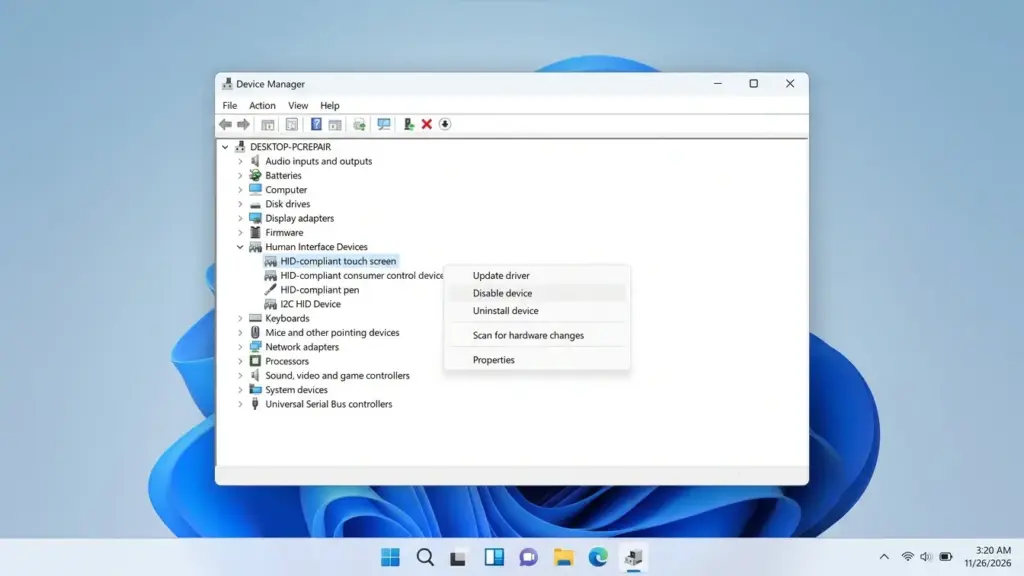
Toggling the touch driver off and back on forces Windows 11 to reinitialize the digitizer without rebooting. This is the single most common fix for a touchscreen that stops working after sleep.
- Right-click Start and select Device Manager (use your touchpad or keyboard).
- Expand Human Interface Devices.
- Look for HID-compliant touch screen. (If you see more than one, repeat these steps for each one.)
- If it shows a small downward arrow, it is disabled—right-click it and select Enable device.
- If it is already enabled, right-click it, select Disable device > Yes, wait five seconds, then right-click it again and select Enable device.
You should see: the touchscreen start responding immediately after re-enabling. If HID-compliant touch screen is missing from the list, click View > Show hidden devices and continue to Fix 3 and Fix 5.
Fix 3: Reinstall the Touch Screen Driver in Device Manager
If toggling the driver did not wake the screen—or if the entry shows a yellow warning triangle—reinstall the driver cleanly.
- Open Device Manager and expand Human Interface Devices.
- Right-click HID-compliant touch screen and select Uninstall device.
- Leave Attempt to remove the driver for this device unticked (if shown) and click Uninstall.
- In the top menu, click Action > Scan for hardware changes, then restart your laptop so Windows reloads a fresh driver.
You should see: HID-compliant touch screen reappear cleanly under Human Interface Devices with no yellow warning icon, and touch input work normally.
Fix 4: Stop Windows From Turning Off the Touchscreen to Save Power
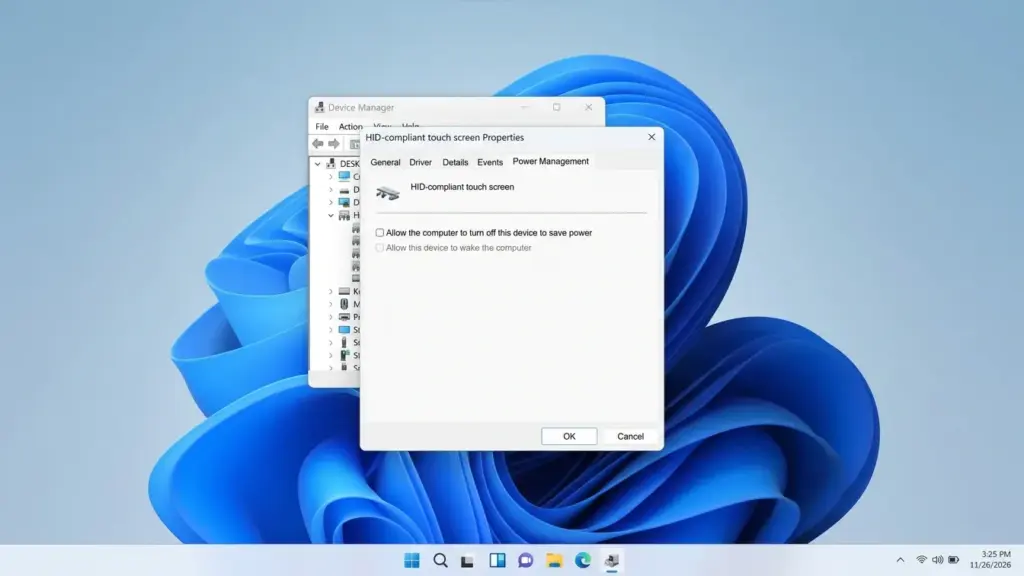
If your touchscreen works fine right after a reboot but dies every time the laptop goes to sleep or runs on battery, Windows power management is cutting power to the touch controller.
- Open Device Manager and expand Human Interface Devices.
- Double-click HID-compliant touch screen (and any I2C HID Device listed nearby).
- Open the Power Management tab (if available).
- Untick Allow the computer to turn off this device to save power and click OK.
- Restart your laptop to apply the change.
You should see: the touchscreen stay active after idle periods and wake cleanly from sleep.
Fix 5: Update Chipset, I2C, and Firmware Drivers From Your Laptop Maker
Many modern touchscreens rely on an Intel Serial IO or AMD I2C controller driver. If that parent controller fails, the HID-compliant touch screen entry disappears from Device Manager altogether.
- Open Settings > Windows Update > Advanced options > Optional updates and install any waiting Driver updates or Firmware entries. (If updates stall, see how to fix Windows Update stuck or failing.)
- Visit your laptop manufacturer's official support page (Dell, HP, Lenovo, ASUS, Acer, or Microsoft Surface) for your exact model, or open their built-in update app (Dell SupportAssist, Lenovo Vantage, MyASUS, HP Support Assistant).
- Download and install the latest Chipset, Intel Serial IO / I2C, and Touchscreen Firmware drivers, then restart.
You should see: any yellow warning icons under Human Interface Devices or System devices clear, and touch input return. For safe driver steps, read how to update drivers in Windows 11 safely.
Fix 6: Recalibrate the Touchscreen in Control Panel
If your touchscreen responds, but taps register an inch away from your finger or only part of the screen reacts accurately, reset and recalibrate touch input.
- Press Windows + S, type
Calibrate the screen for pen or touch input, and open the matching Control Panel result. - Under the Display tab, click Reset first (if available) to clear any bad calibration profile.
- Click Calibrate..., choose Touch input, and tap each crosshair accurately as it appears on screen.
- Click Yes to save the new calibration data.
You should see: taps and swipes land accurately right under your fingertip across all four corners of the screen.
Fix 7: Check Tablet Mode, Touch Keyboard Service, and Pen Settings
On 2-in-1 laptops, a stuck Touch Keyboard service or pen-priority setting can block finger touches.
- Press Windows + R, type
services.msc, and press Enter. - Scroll down to Touch Keyboard and Handwriting Panel Service, double-click it, set Startup type to Automatic, and click Start (or Restart if already running).
- Open Settings > Bluetooth & devices > Pen & Windows Ink and temporarily untick Ignore touch input when I'm using my pen if you use a stylus—a stuck stylus proximity sensor can lock out finger touch.
You should see: finger taps register normally even if a stylus was recently paired or docked.
Fix 8: Test the Touchscreen in UEFI/BIOS (Hardware vs. Software Test)
Most modern laptops have a touch-enabled UEFI/BIOS setup screen. Testing touch there tells you immediately whether Windows is the problem or the physical screen digitizer has failed.
- Restart your laptop and tap the BIOS key at startup (commonly F2, F10, F12, or Delete; on Surface devices, hold Volume Up while pressing Power).
- Once the UEFI/BIOS screen loads, try tapping a menu item with your finger.
- Also check under Advanced, Built-In Device Options, or Devices to make sure Touchscreen is set to Enabled.
You should see:
- Touch works in UEFI/BIOS: Your screen hardware is healthy—the fault is inside Windows 11 (continue to Fix 9).
- Touch does NOT work in UEFI/BIOS (on a touch-enabled BIOS): The touch digitizer or internal display ribbon cable has a hardware fault.
Fix 9: Rule Out Software Conflicts and Repair Windows System Files
If touch works in UEFI/BIOS or Safe Mode but fails on your normal Windows 11 desktop, repair core system files and check for conflicting background apps.
- Right-click Start, choose Terminal (Admin), and run these two commands one after the other:
DISM /Online /Cleanup-Image /RestoreHealth
sfc /scannow- Restart your laptop once both scans finish. For full details on what each output means, see how to repair Windows system files with SFC and DISM.
- If the issue started after installing a third-party screen overlay, remote desktop tool, or display utility, test with how to do a clean boot in Windows 11 to find a software conflict.
You should see: DISM and SFC complete cleanly and touch input work normally after restarting.
When to Stop and Get Help
- The glass is cracked or a single dead horizontal/vertical strip never responds in Windows or BIOS: The capacitive digitizer layer is physically damaged and requires a screen assembly replacement.
- The touchscreen fails in UEFI/BIOS and never appears in Device Manager even after installing official Chipset/I2C drivers: The internal touch ribbon cable may have worked loose at the hinge or the digitizer board has failed; contact the laptop maker under warranty or a local repair shop.
- Your laptop is a work or school device: IT administrators sometimes disable touchscreens via Group Policy or BIOS lock; check with your IT helpdesk before troubleshooting further.
Common Mistakes
- Assuming a laptop has a touchscreen when that specific model configuration does not. Many laptop series (like Dell Inspiron, Lenovo ThinkPad, and HP Pavilion) sell identical-looking touch and non-touch versions. Check Settings > System > About > Device specifications—look at the Pen and touch line to confirm it says Touch support with 10 touch points (not No pen or touch input is available for this display).
- Spraying liquid cleaner directly onto the screen. Moisture seeping into the bottom bezel is a leading cause of permanent ghost touches and dead digitizers.
- Installing generic driver-updater software. Touch digitizers rely on exact vendor I2C and firmware packages from your laptop maker, not third-party driver packs.
Sources
- Microsoft Support: What to try if your touchscreen doesn't work in Windows — official steps for re-enabling, reinstalling, and updating the HID-compliant touch screen driver.
- Microsoft Support: Update drivers through Device Manager in Windows — official instructions for managing hardware drivers in Windows 11.
More Help
For more Windows 11 laptop, display, and hardware troubleshooting guides, visit the PC Repair Atlas homepage.
FAQ
How do I check if my Windows 11 laptop actually has a touchscreen?
Open Settings > System > About and look at the Pen and touch line under Device specifications. If your laptop has a working touchscreen, it will say Touch support (usually with 10 touch points).
Why did "HID-compliant touch screen" disappear from Device Manager?
This usually happens when the touch controller stalls after sleep or the parent Intel Serial IO / AMD I2C driver fails. Perform a 30-second power drain (Fix 1) and install your laptop maker's latest Chipset and I2C drivers (Fix 5).
How do I stop ghost touches on a cracked laptop touchscreen?
Open Device Manager, expand Human Interface Devices, right-click HID-compliant touch screen, and select Disable device. This turns off touch input cleanly while letting you keep using the display, keyboard, and mouse.
Will resetting Windows 11 fix a touchscreen that does not work in BIOS?
No. If the touchscreen does not respond inside a touch-enabled UEFI/BIOS screen, the fault is hardware (a loose ribbon cable or failed digitizer), so resetting Windows will not fix it.