How to Fix a PC That Shuts Down While Gaming
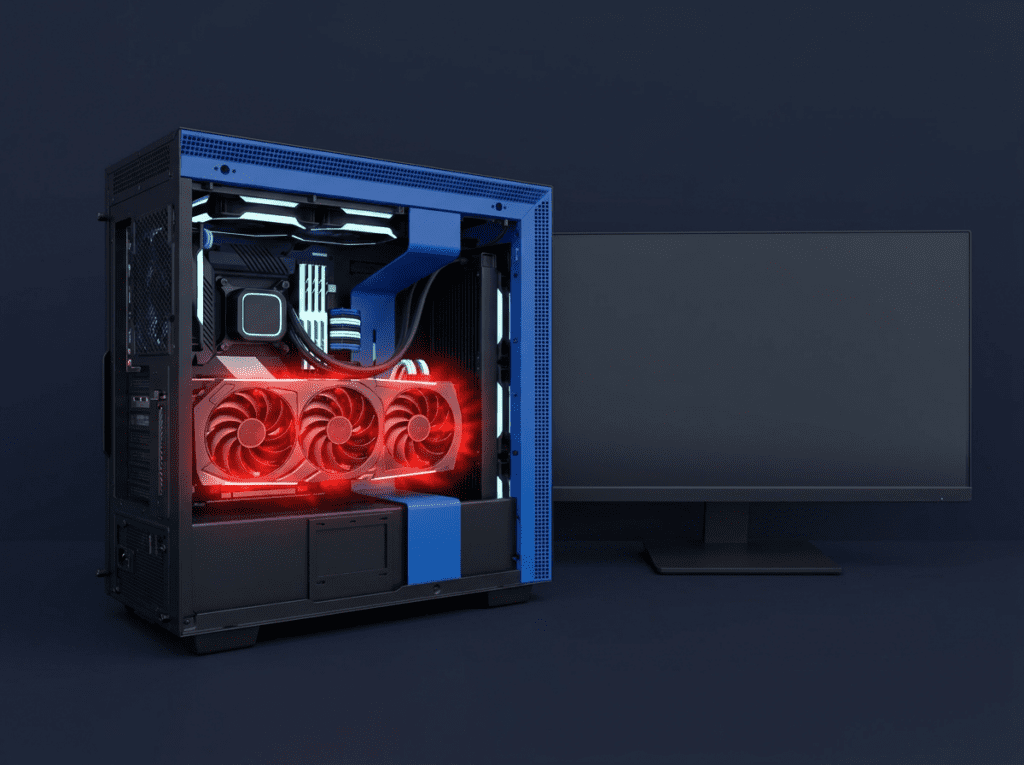
A PC that powers off during a game is reacting to something that changes under load: heat, power demand, a loose connection or unstable settings. A full shutdown is different from a game that closes to the desktop. Treat a sudden power-off as a heat or power problem until you have ruled those out. This guide shows how to tell which, with a check at each step.
Step-by-step: diagnose gaming shutdowns
Step 1: Note exactly what happens
Does the game close while Windows stays on (a software crash)? Does the PC restart on its own? Or does every light and fan go off at once, as if unplugged? A full power loss points to heat protection or power delivery. A blue screen points to drivers or memory (see blue screen errors). Note the game, how long you had played and whether other games do it too.
Step 2: Read what Windows recorded
Right-click Start, open Event Viewer, then go to Windows Logs > System. Select Filter Current Log and look for Event ID 41 (source Kernel-Power) and Event ID 6008 around the time of the shutdown. Event 41 means Windows restarted without a clean shutdown. In its details, a BugcheckCode of 0 means no blue screen was recorded, which fits a sudden power cut, protection shutdown or hard hang. A non-zero code means a blue screen: look it up in the BSOD guide. Reliability Monitor shows the same events in a timeline.
You should see: a matching event with the time of the last shutdown. If there is no event at all, power was cut so abruptly that Windows could not log it. That favours a power supply, outlet, cable or heat-protection cause.
Step 3: Check temperatures during the problem
Run the game with a monitoring tool open (see how to check CPU and GPU temperature). Watch both temperatures after 10 to 15 minutes of normal play, then note the highest values. If either temperature reaches its maker's limit just before the shutdown, heat protection is the likely cause. If temperatures look reasonable when it shuts down, suspect power.
Step 4: Improve airflow and remove dust
Confirm that case fans spin, vents are clear and no cable blocks a fan. Taking the side panel off for a test shows whether airflow is the issue, but it is not a permanent fix. Use the overheating guide for safe cleaning and cooler checks. Do not blow compressed air into a fan that is free to spin.
Step 5: Check the power path outside the PC
Plug the PC straight into a wall socket (no extension strip, UPS or timer) and swap the power cable for another one with the same type of plug. Try a different socket. A worn strip, loose cable or overloaded UPS can drop out when the PC's load rises. On a laptop, check that the charger's wattage matches what the laptop needs (see how to choose the right laptop charger) and try playing on the charger and on battery to compare.
Step 6: Check the graphics-card power connection
With the PC off and unplugged, reseat every PCIe power connector at the graphics card and at the power supply until it clicks. If the card uses a 12VHPWR or 12V-2x6 plug, make sure it is pushed all the way in and not sharply bent next to the plug, following the card maker's guidance. Use only the cables that came with that exact power supply. Do not mix cables from another model, even when the plugs fit, because the pin layouts can differ.
Step 7: Check power-supply capacity and condition
A power supply can work at idle and fail when the graphics card and CPU draw more. Compare its rated wattage and age with the card maker's recommended power supply (see how much power supply wattage you need). A unit that is several years old, or one that is very close to your system's peak draw, is a suspect. Follow how to test a PC power supply safely before you buy a replacement. Never open the power supply.
Step 8: Return everything to stock settings
Overclocks and memory profiles that pass at the desktop can fail in games. Open the BIOS (usually Delete or F2 at start) and choose Load Optimized Defaults or turn off XMP/EXPO, then undo any GPU overclock in the graphics maker's tool. Play again. If the shutdowns stop, add settings back one at a time. Warning: note your BIOS settings first, since defaults also reset boot order and fan curves.
Step 9: Update stable graphics drivers
If temperatures, power and settings look fine, reinstall the graphics driver with the correct driver procedure. If shutdowns began right after a driver update, roll back to the previous version.
When to stop and get help
If the PC smells hot or burnt, makes a popping sound or shows scorch marks, shut it down, unplug it and do not use it again until it has been inspected. If the PC still cuts out with defaults, a different outlet and cooler temperatures, the power supply is the most likely cause. Borrowing a known-good, correctly sized power supply is the clearest test.
More help
See the PC repair guides home page for related problems, including random restarts and a black screen while gaming.
FAQ
Why does the PC shut down only in games? Games raise graphics and CPU power use and heat, which can expose cooling or power problems you never see on the desktop.
Can a bad power supply cause a black screen but leave the PC on? Yes. Power problems can cause crashes, restarts and loss of display.
Should I keep testing if the PC smells hot or burnt? No. Shut it down, unplug it and inspect it before using it again.
Is a shutdown at the same time every session a heat problem? Often, yes. If it happens after a similar time each session, heat is the first thing to rule out.