PC Cleaner and OneDrive: How to Free Local Storage Without Deleting Cloud Files
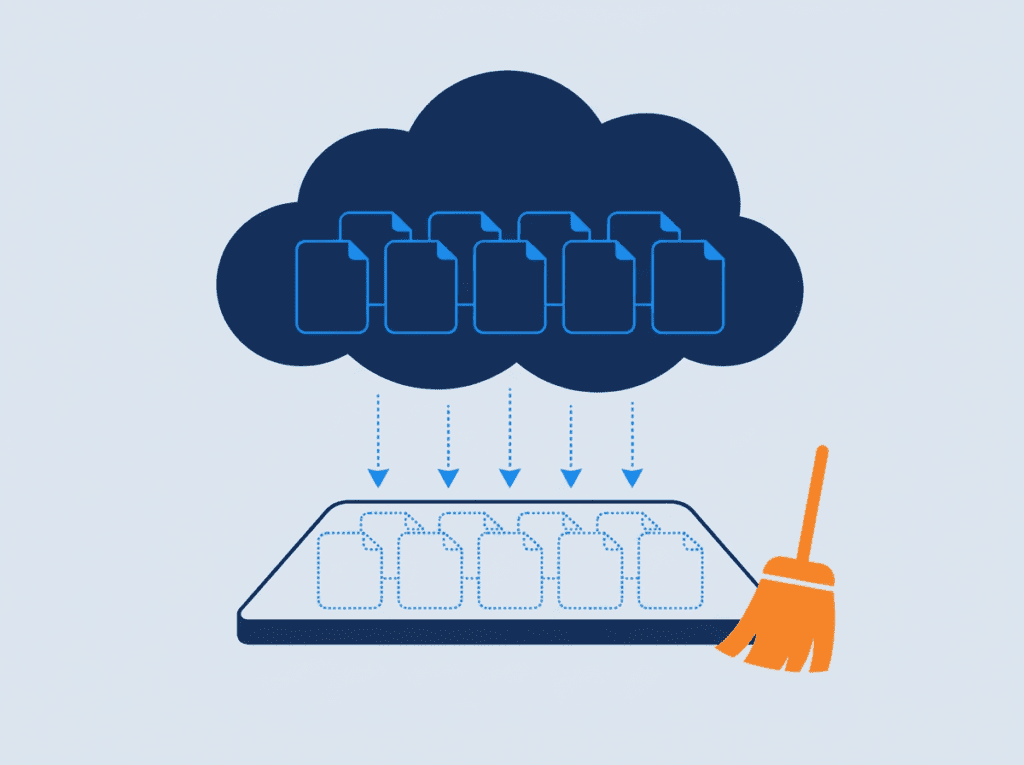
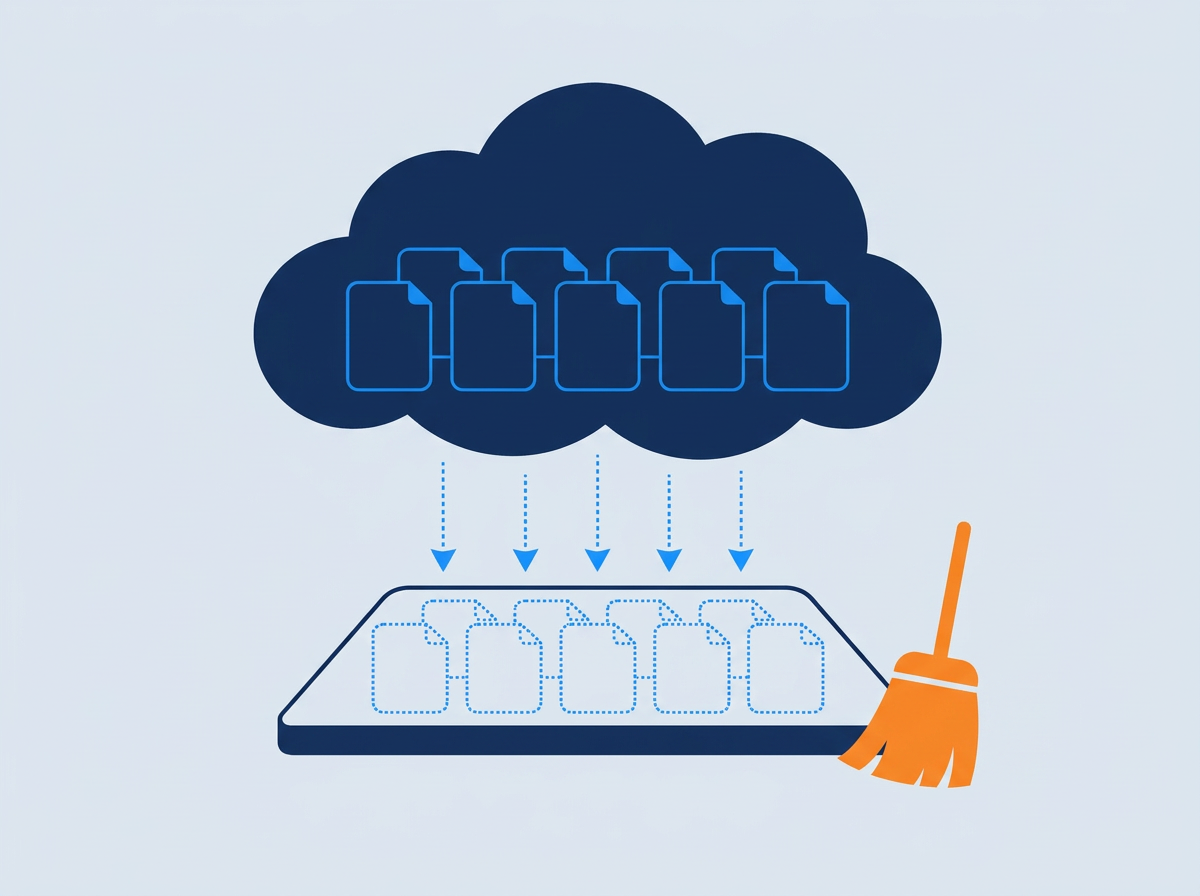
Using a PC cleaner on a computer that syncs with OneDrive needs care. A PC cleaner OneDrive scan can flag large, old or duplicate files inside your OneDrive folder. Deleting those files there also removes them from OneDrive online. This guide shows how to free local space without deleting your cloud files.
Last reviewed: November 23, 2026 (Pacific). Steps were compared with Microsoft documentation; none was run on a real PC.
Quick answer
Do not delete files inside the OneDrive folder to free space. Right-click files you have already synced and choose "Free up space". That keeps the cloud copy and removes only the copy on your PC. Check both recycle bins before and after any cleanup.
In this guide
- PC cleaner OneDrive basics: why deletions reach the cloud
- Local, online-only and always-available files
- Deleting versus Free up space
- Checklist before you run a cleaner
- Freeing space safely with Files On-Demand
- Known Folder Backup: Desktop, Documents and Pictures
- How much space OneDrive uses on this PC
- Stopping sync or unlinking this PC safely
- Storage Sense and online-only files
- What a cleaner may flag in OneDrive folders
- Decision guide for a flagged file
- OneDrive and Windows Recycle Bins
- If something was deleted by mistake
- Result check
- Windows 10 differences
- How this guide was checked
- More help
- Frequently asked questions
- Sources
PC cleaner OneDrive basics: why deletions reach the cloud
OneDrive keeps a folder on your PC that is linked to your cloud account. Some files in that folder are full copies on the disk. Others are online-only placeholders that point to the cloud. Both kinds belong to your OneDrive account.
When you delete a file inside the OneDrive folder, the deletion syncs. Microsoft’s guide on deleting OneDrive items says to select the items in your OneDrive folder and press Delete. As general guidance, deleting an online-only file removes it from your OneDrive on all devices and online.
A cleaner works on the disk. It usually has no view of your OneDrive account, so it cannot tell whether a flagged file is your only copy. Our rule of thumb: treat the OneDrive folder as the cloud itself. For a wider view, read our PC cleaner guide for Windows 10 and 11.
Local, online-only and always-available files
OneDrive shows each file’s state with a small icon in File Explorer. Microsoft describes three states. The table sums them up, with the safe action for each.
| State | What you see | Uses local space? | Safe cleanup action |
|---|---|---|---|
| Online-only | Blue cloud icon | No. Microsoft says online-only files "don't take up space on your computer." | Leave it. There is nothing to free. |
| Locally available | Green check icon | Yes, after the file has downloaded. | Right-click and choose "Free up space". The cloud copy stays. |
| Always available | Green circle with a white check mark | Yes. These files stay on the device for offline use. | Change it only if you no longer need offline access, then use "Free up space". |
Microsoft also states that changing a file to online-only "doesn’t delete it from your OneDrive". The file can still be seen in the OneDrive mobile apps or on the website.
Deleting and Free up space are different actions
These two actions look alike in File Explorer, but they have different results. Deleting removes the item from the cloud. Free up space removes only the local copy.
Deleting is not the same as freeing space
Deleting a file in the OneDrive folder syncs the deletion to OneDrive online. Microsoft’s recovery page says that files deleted from the cloud, including online-only files, do not appear in your computer’s Recycle Bin.
Free up space works the other way. Microsoft describes it as the default and recommended behaviour. The file stays in OneDrive and remains visible online.
Checklist before you run a cleaner on a synced PC
Work through these steps before any scan. Each takes a few minutes. For a broader list of checks, see our PC cleaner software checklist.
- Confirm your copies. Make sure important files exist in OneDrive online or in a backup. For a backup routine, see backing up Windows PC files with a system image.
- Exclude the OneDrive folder. If the cleaner has an exclusion or ignore list, add your OneDrive folder. Also check whether OneDrive backs up your Desktop, Documents and Pictures folders, because cleaning those can affect the cloud copies. For general cleaner use, see how to use a PC cleaner safely on Windows 11.
- Check the icons. A blue cloud means online-only, a green check means locally available, and a green circle means always available. Do not approve a delete inside OneDrive until you know each item’s state.
- Check both recycle bins. Note what is in the Windows Recycle Bin and in the OneDrive recycle bin on the web, so you can compare later.
- Leave OneDrive’s own files alone. Do not clean hidden OneDrive settings or cache folders by hand. If a cleaner lists OneDrive cache or logs, leave them. For sync problems, see fixing OneDrive that is not syncing on Windows.
Freeing space safely with Files On-Demand
Files On-Demand keeps files in the cloud and downloads them when you open them. The steps below turn it on and free space without deleting anything. Menu wording can differ between Windows 10 and Windows 11, so check the labels on your screen.
Turn on Files On-Demand
- Select the OneDrive cloud icon in the notification area, then the Help and Settings icon, then Settings. The icon may sit behind the hidden icons arrow.
- Go to the Sync and back up tab and expand Advanced settings.
- Turn on Files On-Demand.
- Check that files in the OneDrive folder now show cloud icons.
Result: Microsoft says new files from the cloud are "online-only by default, not taking up disk space".
Free up space on a file or folder
- Open File Explorer and find the file or folder inside your OneDrive folder.
- Right-click it and choose "Free up space".
- Check the item’s icon. It should now show a blue cloud.
- Repeat one folder at a time, so you can check each result.
Result: the cloud copy remains. Open the file later and it downloads again. To see the effect on your drive, open File Explorer, select This PC, and check Devices and drives.
Known Folder Backup: Desktop, Documents and Pictures
OneDrive can back up your Desktop, Documents and Pictures folders.
Microsoft also says that when you back up your Desktop folder, the items on your desktop "roam with you to your other desktops where you’re running OneDrive." A cleaner that touches those folders can therefore affect the cloud copies too.
To stop a backup, turn off the toggle for that folder in OneDrive settings. Microsoft then asks you to choose one of two options:
- Keep the files only in OneDrive. This removes them from your computer.
- Keep the files only on my PC. This removes them from OneDrive.
Menu names can vary by version, so look for Sync and backup and Manage backup on your own screen.
Check the cloud-only files first
If the folder holds online-only files, the move can stop. Microsoft says you may see: "Some files couldn’t be moved. Download them first by changing their state to Always keep on this device."
Our general advice: stop the backup before you clean a backed-up folder, and check which of the two options you picked.
How much space OneDrive uses on this PC
The size shown for a folder and the space it uses on your disk can differ. An online-only file can add to a folder’s total size, but Microsoft says online-only files "don’t take up space on your computer."
Our general advice: to compare the two numbers, right-click the OneDrive folder or a subfolder in File Explorer and open Properties. Look for the Size and Size on disk lines. Menu names can vary, so check the labels on your screen.
If Size is large but Size on disk is small, the folder is mostly online-only. Freeing space there will gain little.
Stopping sync or unlinking this PC safely
You can stop syncing some folders without unlinking the account. As general guidance, if you don’t want to sync all of your OneDrive folders to your computer, you can choose which folders to sync.
Unlinking is a bigger step. Microsoft’s steps are:
- Select the OneDrive cloud icon in the taskbar or menu bar, select the gear icon, then select Settings.
- Go to the Account tab.
- Select Unlink this PC, and then select Unlink account.
Microsoft says: "You won’t lose files or data by unlinking OneDrive from your computer." It also says: "You can always access your files by signing in to OneDrive.com."
Our general advice: copy any file you need out of the OneDrive folder before you unlink, as a precaution. Then check the copy.
Do not delete the folder to free space
Deleting files inside the OneDrive folder also deletes them online. For removing the folder, Microsoft says to "turn off all the OneDrive settings and remove the OneDrive folder from File Explorer." Follow those steps, not a delete.
Storage Sense and online-only files
Storage Sense can also make unused OneDrive files online-only. Microsoft’s Storage Sense page says that starting in Windows 11, version 22H2, the default for OneDrive cloud files is to make them online-only if not opened for more than 30 days.
The setting is labelled "Content will become online-only if not opened for more than". Find it under Start > Settings > System > Storage > Storage Sense. Microsoft says you see this section only when you are signed in to your cloud account. Storage Sense is off by default.
What Storage Sense will and will not do
Microsoft says this setting "will not permanently delete any files". Files can be made locally available again when there is free disk space and network connectivity. Any file marked "Always keep on this device" is exempt.
Storage Sense works on your system drive only, usually C:. Items in your Downloads folder and OneDrive are not touched unless you set Storage Sense to manage them. If Storage Sense does not run, see why Storage Sense may not work on Windows 11. If C: is still full, see what to check when the C: drive is full. Disk Cleanup has its own steps, covered in our Disk Cleanup guide, and a side-by-side view is in PC cleaner, Storage Sense and Disk Cleanup compared.
What a cleaner may flag in OneDrive folders
Windows 11's Cleanup recommendations, under Start > Settings > System > Storage, groups items into categories. Microsoft lists "Temporary files", "Large or unused files", "Files synced to the cloud" and "Unused apps". Third-party cleaners may use other names. Our guide to Windows 11 cleanup recommendations explains each group, including the one for files synced to the cloud.
Large files
A large file in the OneDrive folder may be a video or a project file. Check its icon first. A blue cloud means it takes no local space, so deleting it frees nothing. For larger-scale space recovery, see how to free up disk space on Windows 11.
Duplicate files
A cleaner may flag two copies of the same photo, for example one in OneDrive and one in Pictures. Do not delete either until you know which copy you want. Our guide on duplicate files on Windows 11 explains how to compare them.
Old files
An old file that has not been opened is not necessarily unneeded. It may be your only copy of a record or a manual. If you only want the space, use "Free up space" and keep the cloud copy.
The OneDrive folder itself and system items
A cleaner may flag the OneDrive folder, or cache and log files inside it. Leave the folder in place. Leave cache and logs to OneDrive’s own reset or repair. System items such as reserved storage are a separate topic, covered in system and reserved storage on Windows 11. For scan results in general, read which PC cleaner scan results are safe to delete.
Decision guide for a flagged file
Use this path for each item a cleaner lists. Stop at the first answer that fits.
- Is the file inside your OneDrive folder?
- No. Check it as any other file on the PC. If it sits in Downloads, read how to stop a PC cleaner deleting Downloads files first.
- Yes. Is the icon a blue cloud?
- Yes. Leave it. It takes no local space.
- No. Do you still need it offline?
- No. Right-click it and choose "Free up space".
- Yes. Leave it as it is.
OneDrive and Windows Recycle Bins
Each delete goes to a different bin. Microsoft says files deleted from your computer’s OneDrive go to your computer’s Recycle Bin or Trash. Files deleted from OneDrive.com go to your OneDrive recycle bin.
| Where you delete | Where it goes | What to check |
|---|---|---|
| A file in the OneDrive folder on this PC | The Windows Recycle Bin. The deletion also syncs online. | Both the Windows Recycle Bin and the OneDrive recycle bin on the web. |
| A file deleted on OneDrive.com | The OneDrive recycle bin on the web. It does not appear in the PC Recycle Bin. | The OneDrive recycle bin, within the restore period in the steps below. |
Our general advice: do not empty either bin until you have checked both.
If something was deleted by mistake
Act quickly, and do not empty any recycle bin until you have looked. Check these places in order.
- Check the OneDrive recycle bin on the web. Microsoft says files deleted from the cloud, including online-only files, may be restored from the OneDrive or SharePoint web recycle bin.
- Check the Windows Recycle Bin. Microsoft's restore page says to check your Windows Recycle Bin if you delete files or folders from your OneDrive folders, or cannot find them online.
- Check the time limit. Microsoft says: "For personal accounts, you can restore files or folders deleted within the last 30 days. For work or school accounts, you can restore files or folders deleted within the last 93 days, unless your administrator changed the retention setting."
Microsoft also says you "can’t restore files or folders after they’ve been permanently deleted from the OneDrive recycle bin". For the next steps, see recovering files a PC cleaner deleted on Windows 11 and recovering deleted files on Windows 11. We have not tested those steps here.
Result check
After your steps, check the results. Look at free space under This PC, then open OneDrive online and confirm the files you need are still there. Use the same checklist on every run.
Did the cleanup go as planned?
Free space went up, the files you kept still show in OneDrive online, and the items you freed show a blue cloud icon.
Space did not change, or a file you need is missing from OneDrive online. Stop running the cleaner, check both recycle bins, and follow the recovery steps above.
If you plan regular runs, read how to schedule PC cleanup on Windows 11 first, so the OneDrive folder stays excluded every time.
Windows 10 differences
Our general advice: on Windows 10, the OneDrive icon, the Settings pages and the Storage pages can sit in different places. Read the labels on your screen before you click.
The ideas in this guide still apply. A blue cloud takes no local space, and Free up space keeps the cloud copy. We did not run these steps on Windows 10 for this guide.
How this guide was checked
We compared these steps with Microsoft Support pages on OneDrive Files On-Demand, Storage Sense, deleting OneDrive files, backing up folders, stopping sync, unlinking and restoring files. We quoted only what those pages say.
No cleaner was run, and no OneDrive setting was changed, on a real PC for this guide. Menu names can differ by Windows version and OneDrive build. Where a point is our own general advice, we label it as the site rule of thumb or as general advice.
More help
For help choosing your next step, try the Repair Assistant. For other Windows repair topics, browse our PC repair guides.
Frequently asked questions
Deleting and cloud copies
Will a PC cleaner delete my OneDrive files from the cloud?
As general guidance, it can, if the cleaner deletes a file inside the OneDrive folder. As general guidance, deleting an online-only file deletes it from your OneDrive on all devices and online (we did not find this on a Microsoft page). Exclude the OneDrive folder from scans, and check each icon before you approve a delete.
Does Free up space delete the file from OneDrive?
No. Microsoft says changing a file to online-only "doesn’t delete it from your OneDrive". The file still shows on the website and in the mobile apps.
Can I get back a file I deleted from the OneDrive folder?
Check the OneDrive recycle bin on the web first. Microsoft says personal accounts can restore items deleted within the last 30 days, and work or school accounts within 93 days, unless an administrator changed the setting. Files deleted from the cloud do not appear in the PC Recycle Bin.
Does unlinking OneDrive delete my files?
Microsoft says you won’t lose files or data by unlinking OneDrive from your computer. Our general advice is still to copy any file you need out of the folder first.
Freeing space and cleaners
Does Storage Sense delete my OneDrive files?
Microsoft says the Storage Sense setting for cloud files "will not permanently delete any files". It makes unused files online-only, and files marked "Always keep on this device" are exempt. Cloud content is managed only when you set that up.
Is Disk Cleanup safe on a synced PC?
Microsoft's Free up drive space in Windows guide says Disk Cleanup on Windows 10 selects some items by default, such as Thumbnails. Clear any boxes you do not want, and read each item before you clean. Skip anything inside the OneDrive folder.
What if my cleaner lists OneDrive cache or logs?
Leave them alone. Do not clean hidden OneDrive settings or cache folders by hand. Use OneDrive’s own reset or repair routes instead.
What happens if I stop backing up my Desktop?
You choose. Keep the files only in OneDrive removes them from your computer. Keep the files only on my PC removes them from OneDrive. Check which option you picked before you clean.
Sources
- Save disk space with OneDrive Files On-Demand for Windows | Microsoft Support
- Manage drive space with Storage Sense | Microsoft Support
- Free up drive space in Windows | Microsoft Support
- Delete files or folders in OneDrive | Microsoft Support
- Restore files deleted from your OneDrive | Microsoft Support
- Back up your folders with OneDrive | Microsoft Support
- Turn off, disable, or uninstall OneDrive | Microsoft Support